 PixQR
PixQR
Overview
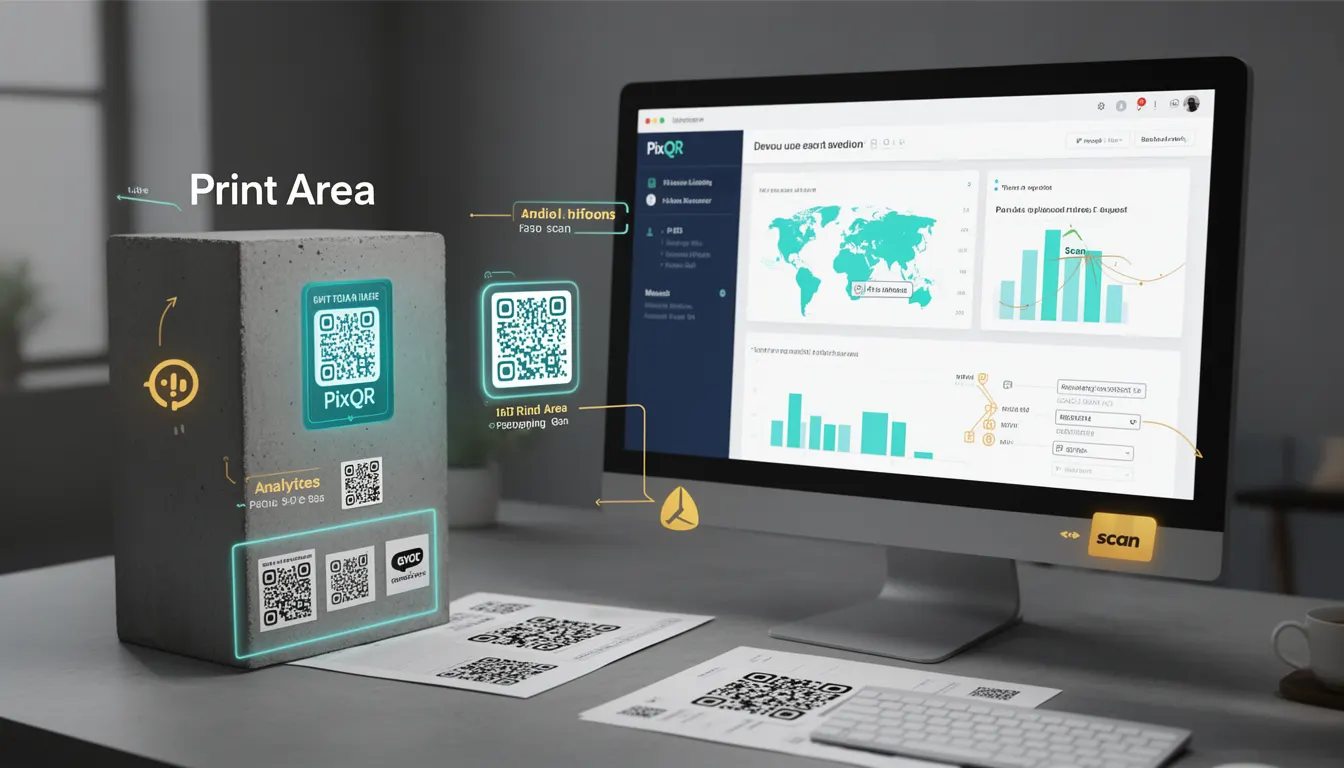
In the context of packaging and QR code generation, the term Print Area refers to the defined physical space on a product or packaging surface where a QR code is intended to be printed. This area is critical for ensuring that the QR code is scannable, visible, and correctly positioned to connect physical products to digital information.
For developers working with PixQR, the Print Area concept is essential when designing QR code layouts for product packaging. It directly impacts how QR codes are generated, positioned, and validated for optimal scanning reliability. When a Print Area is not properly defined or respected, QR codes may fail to scan, appear distorted, or misalign with digital redirects, resulting in poor user experience or data integrity issues.
Why It Matters
For developers, understanding the Print Area is crucial for maintaining consistency and reliability across QR code implementations. Incorrect handling of Print Area dimensions or placement can lead to QR codes that are too small, misaligned, or obscured, which directly affects scan success rates. In PixQR, this translates to reduced effectiveness of dynamic redirects, compromised brand safety, and potential customer confusion.
From a production standpoint, the Print Area ensures that QR codes are generated within the constraints of physical materials, such as paper, plastic, or metal. This matters for both the visual design and the technical scanning behavior. For example, if a QR code is printed too close to an edge or within a restricted area, it may be cut off or fail to render correctly, especially when printed at different scales or under varying lighting conditions.
How It Works
The Print Area concept is implemented through a set of defined constraints and parameters that guide QR code generation and placement. These parameters are used to ensure that the QR code is placed within a usable area of the product surface, and that it remains scannable and aligned with digital content.
- The Print Area is defined in physical units (e.g., millimeters or inches) and is typically represented as a rectangle on the packaging design.
- QR code dimensions and positioning are constrained by the Print Area, ensuring that the code does not exceed the boundaries or overlap with critical product information.
- When generating a QR code for a packaging product, PixQR uses the Print Area to determine the optimal size, margin, and placement for the code.
- Scan reliability is enhanced when QR codes are placed within a well-defined Print Area, as it reduces variability in scanning behavior across different devices and environments.
- Print Area specifications are often integrated into design templates and can be validated during QR code creation to prevent errors in production.
Quick Reference
| Item | Purpose | Notes |
|---|---|---|
| Print Area Dimensions | Defines physical boundaries for QR code placement | Must align with packaging constraints |
| QR Code Margin | Minimum space around QR code to ensure scannability | Typically 10% of QR code size |
| Placement Constraints | Rules for positioning QR code within Print Area | Must avoid critical product information |
| Scan Validation | Ensures QR code is within scannable range | Prevents failure during real-world scans |
| Dynamic Redirects | Links QR code to digital content | Print Area affects redirect success rate |
Basic Example
PixQR Example QR
This QR links directly to this glossary page, so printed notes, onboarding docs, and support material can bring scanners back to the current reference.
/glossary/qr-code-for-packaging/qr-codes-for-packaging-print-area

This basic example shows how a Print Area is defined in a packaging template to guide QR code placement.
const printArea = {
  width: 50,
  height: 50,
  x: 10,
  y: 10
};

const qrCodeConfig = {
  size: 30,
  margin: 5,
  position: {
    x: printArea.x + (printArea.width - qrCodeConfig.size) / 2,
    y: printArea.y + (printArea.height - qrCodeConfig.size) / 2
  }
};
The example defines a Print Area of 50x50 mm and places a QR code of 30x30 mm in the center. This ensures the QR code is within the defined area and leaves a margin for scannability.
Production Example
This production example demonstrates how to validate a Print Area and generate a QR code with proper constraints for packaging use.
function generateQRCodeForPrintArea(printArea, url) {
  const qrSize = Math.min(printArea.width, printArea.height) * 0.7;
  const margin = qrSize * 0.1;
  const position = {
    x: printArea.x + (printArea.width - qrSize) / 2,
    y: printArea.y + (printArea.height - qrSize) / 2
  };

  if (qrSize < 20) {
    throw new Error('QR code size too small for scannability');
  }

  return {
    size: qrSize,
    margin: margin,
    position: position,
    url: url
  };
}

const packagingPrintArea = {
  width: 80,
  height: 80,
  x: 10,
  y: 10
};

const qrConfig = generateQRCodeForPrintArea(packagingPrintArea, 'https://example.com/product');
This version includes validation to ensure the QR code size meets minimum scannability standards and properly centers the code within the Print Area. It is suitable for production because it handles errors, enforces constraints, and scales appropriately for physical packaging.
Common Mistakes
- Not defining a Print Area at all, leading to QR codes that are too large or poorly positioned on packaging.
- Ignoring margin requirements, which can cause QR codes to be unreadable or misaligned with the intended redirect.
- Using inconsistent units (e.g., mixing pixels and millimeters), which can cause rendering errors in print or digital output.
- Placing QR codes too close to edges or product graphics, which can result in cutting or misalignment during printing.
- Overlooking scan reliability testing, which can lead to codes that work in lab conditions but fail in real-world environments.
Security And Production Notes
- Ensure that Print Area constraints are validated to prevent QR codes from being placed in areas that may be cut off or obscured during production.
- Use consistent units across design and generation tools to avoid rendering or scanning issues.
- Implement margin checks to maintain scannability and avoid user frustration with unreadable codes.
- Validate QR code size and placement against physical packaging dimensions to ensure compatibility with real-world scanning devices.
- Consider accessibility by ensuring QR codes are placed where they are visible and scannable for all users, including those with visual impairments.
Related Concepts
Several developer concepts are closely related to the Print Area:
- Dynamic Redirects — The mechanism by which QR codes link to digital content, which must be aligned with Print Area constraints.
- Scan Reliability — The ability of a QR code to be scanned successfully, which depends on correct Print Area usage.
- Brand Safety — Ensuring that QR code placement does not conflict with brand assets or product information.
- Print Quality — The resolution and clarity of the QR code on physical packaging, affected by Print Area and design constraints.
- QR Code Generation API — The PixQR API used to create QR codes with Print Area parameters to ensure proper placement.