 PixQR
PixQR
Overview
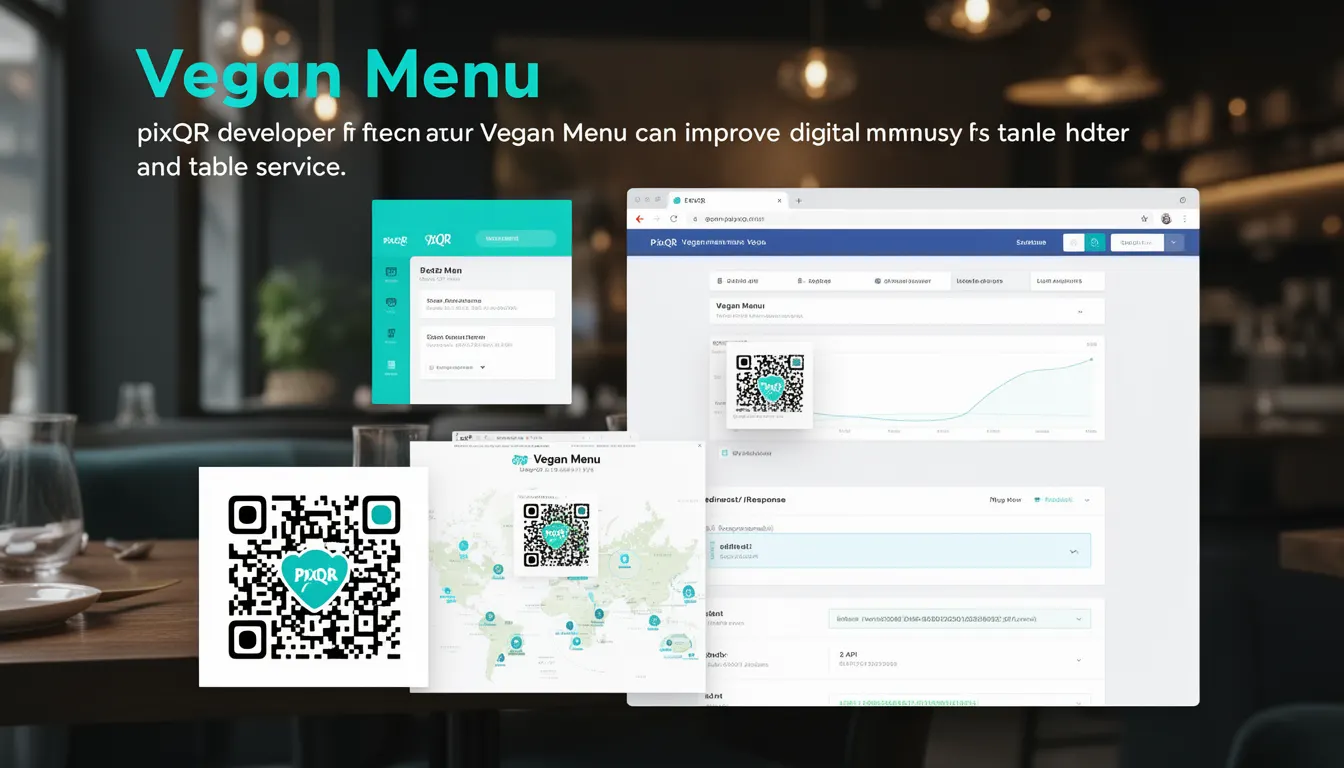
In the context of PixQR, a Vegan Menu refers to a digital menu system that uses QR codes to deliver menu content, specifically tailored for vegan dining options. It is a method of integrating dynamic content delivery via QR codes, enabling restaurants to update their offerings without physical menu changes, while maintaining brand-safe design and scan reliability.
When a customer scans a QR code, they are redirected to a digital menu page that displays vegan options. This approach allows for real-time updates, analytics tracking, and improved user experience, especially in environments where menu changes are frequent or seasonal.
Why It Matters
For developers and restaurant operators, the Vegan Menu implementation within PixQR offers a scalable, secure, and privacy-conscious method to manage menu information. It reduces physical resource usage and supports dynamic content, which is crucial for businesses with frequently changing menus or multiple locations.
From a technical standpoint, it allows for better analytics tracking, including scan rates, time spent on menu pages, and user engagement. It also enhances accessibility by ensuring menu content is available in a consistent, screen-readable format, and it supports compliance with accessibility standards such as WCAG.
How It Works
The Vegan Menu system in PixQR functions by generating a QR code that links to a dynamically managed menu page. The page content is controlled via an API or backend system, enabling real-time updates without modifying the QR code itself.
- QR code generation uses PixQR’s secure API to create a link to a digital menu hosted on their platform.
- Menu content is structured in a JSON format, which supports multiple languages and dietary categories such as vegan, vegetarian, gluten-free, and more.
- Scans are tracked and logged for analytics, allowing operators to understand customer behavior and preferences.
- Content is rendered using responsive design principles, ensuring compatibility across mobile and desktop devices.
- Security is enforced through HTTPS, access controls, and optional authentication layers for internal menu management.
Quick Reference
| Item | Purpose | Notes |
|---|---|---|
| Menu Content API | Provides dynamic menu data | Supports JSON and multi-language formats |
| Scan Tracking | Monitors QR code usage | Analytics and engagement data |
| QR Code Link | Redirects to digital menu | Static or dynamic, supports updates |
| Accessibility | Ensures screen-readability | Compliant with WCAG standards |
| Security Layer | Protects menu data | HTTPS and optional auth |
Basic Example
PixQR Example QR
This QR links directly to this glossary page, so printed notes, onboarding docs, and support material can bring scanners back to the current reference.

This example shows a minimal implementation of a vegan menu using PixQR's QR code generation API. It demonstrates how a QR code can link to a dynamically updated menu page.
const menuData = {
  "category": "Vegan",
  "items": [
    {
      "name": "Vegan Burger",
      "description": "Plant-based patty with fresh vegetables",
      "price": "$12.99"
    }
  ]
};

const qrCodeUrl = "https://api.pixqr.com/qr?menu=" + encodeURIComponent(JSON.stringify(menuData));
The example defines a simple menu object with a vegan category and one item. It then generates a QR code URL using PixQR's API, which encodes the menu data in the query string. This URL can be printed or displayed for customers to scan.
Production Example
This example shows a more robust implementation that includes error handling, content validation, and analytics integration, suitable for production use.
const menuData = {
  "category": "Vegan",
  "items": [
    {
      "name": "Vegan Burger",
      "description": "Plant-based patty with fresh vegetables",
      "price": "$12.99",
      "allergens": ["gluten", "soy"]
    }
  ],
  "language": "en"
};

const validateMenu = (data) => {
  if (!data.category || !data.items || !Array.isArray(data.items)) {
    throw new Error("Invalid menu data");
  }
  return true;
};

validateMenu(menuData);

const qrCodeUrl = "https://api.pixqr.com/qr?menu=" + encodeURIComponent(JSON.stringify(menuData)) + "&analytics=enabled";
This version includes data validation to ensure menu content is correctly formatted before QR code generation. It also enables analytics tracking by appending a query parameter. This structure supports scalability and maintainability in a production environment.
Common Mistakes
- Not validating menu data before encoding into QR code, leading to broken links or display errors.
- Hardcoding menu items in QR code URL, which prevents dynamic updates and requires re-printing physical QR codes.
- Ignoring accessibility requirements, such as alt text or screen reader compatibility, in menu content.
- Using insecure HTTP links instead of HTTPS, which can expose data to interception or tampering.
- Failing to track QR code scans, resulting in missed opportunities for customer insights and menu optimization.
Security And Production Notes
- Always use HTTPS for QR code links to prevent data interception and ensure secure communication.
- Implement access controls or authentication for internal menu management to prevent unauthorized updates.
- Validate all incoming menu data to prevent injection attacks or malformed content.
- Ensure menu content is responsive and accessible to comply with WCAG standards for screen readers.
- Use PixQR’s analytics features to monitor scan behavior and detect potential fraud or misuse of QR codes.
Related Concepts
Several related concepts are essential for understanding and implementing a Vegan Menu system in PixQR:
- Dynamic QR Code Redirects: The ability to update content without changing the QR code itself.
- Menu API Integration: How menu data is fetched and rendered on the digital page.
- Scan Analytics: Tracking how often and where QR codes are scanned for business insights.
- Accessibility Compliance: Ensuring menu content is readable and usable by all users, including those with disabilities.
- Secure Content Delivery: The mechanisms that ensure menu data is delivered safely and reliably.