 PixQR
PixQR
Overview
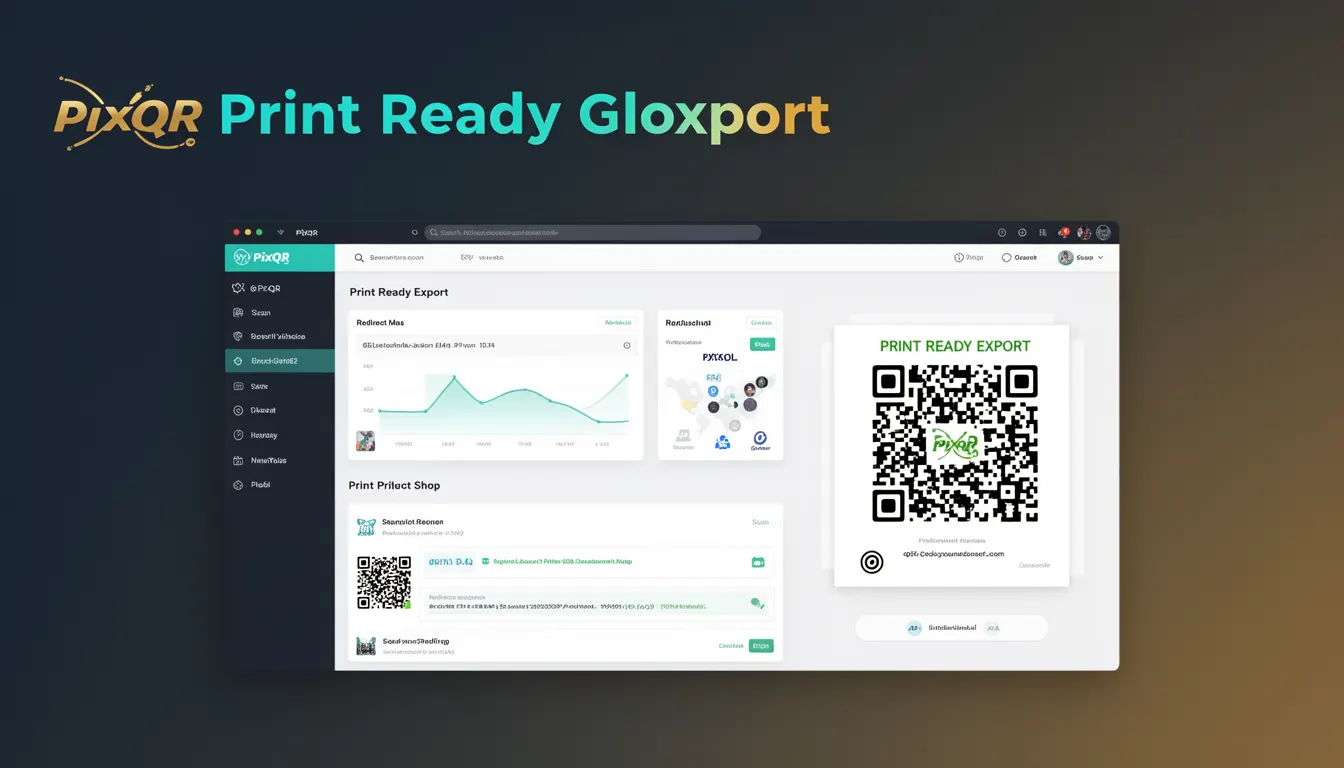
Print Ready Export is a feature within QR code generation platforms that prepares QR codes for physical media, such as printed materials, packaging, or marketing collateral. It ensures that QR codes are rendered at the correct resolution, with appropriate formatting, and optimized for scanning reliability when used in print environments.
Developers and content creators using PixQR may engage with this feature when designing QR codes for offline applications, such as promotional flyers, product labels, or posters. The feature typically includes options for specifying dimensions, resolution, file formats, and visual styling to match brand guidelines or print requirements.
Why It Matters
Print Ready Export is essential for maintaining the integrity and usability of QR codes in physical environments. Poorly exported QR codes may appear blurry, misaligned, or fail to scan due to incorrect resolution or format. This directly impacts user experience and the success of marketing campaigns or operational workflows that rely on QR code functionality.
For developers managing PixQR integrations, ensuring proper export settings helps prevent post-production issues, reduces rework, and supports compliance with brand standards. It also plays a role in scan reliability and fraud prevention, as improperly rendered codes can lead to misdirected traffic or user confusion.
How It Works
Print Ready Export involves multiple steps to prepare a QR code for physical use. The process typically includes:
- Setting a fixed resolution, usually in dots per inch (DPI), to ensure clarity when printed.
- Specifying output dimensions in pixels or physical units such as inches or centimeters.
- Choosing a file format, such as PNG, SVG, or PDF, that supports print quality and scalability.
- Applying visual styling, such as color, background, or border options, to match brand assets.
- Validating QR code integrity and scan readiness before export, including checks for minimum module size and error correction levels.
When using PixQR's API or dashboard, developers can configure these parameters programmatically or via UI controls. The system may also offer options for embedding metadata or tracking parameters into the exported QR code, especially for dynamic redirects.
Quick Reference
| Item | Purpose | Notes |
|---|---|---|
| Resolution (DPI) | Controls print clarity | Typically 300 DPI for high-quality print |
| File Format | Defines export compatibility | SVG for scalable, PNG for raster |
| Dimensions | Specifies physical or pixel size | Must align with print layout constraints |
| Color Options | Applies branding or contrast | Ensure sufficient contrast for scanning |
| Error Correction | Guarantees scannability | Must be at least level M for print |
Basic Example
PixQR Example QR
This QR links directly to this glossary page, so printed notes, onboarding docs, and support material can bring scanners back to the current reference.
/glossary/qr-code-generators/qr-code-generators-print-ready-export
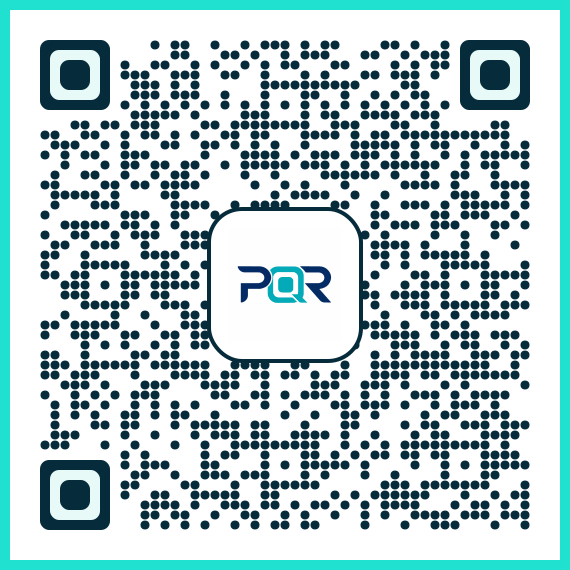
This example demonstrates a basic QR code export with standard settings for print use:
const qrCode = pixqr.generate({
  data: 'https://example.com',
  export: {
    format: 'png',
    resolution: 300,
    width: 200,
    height: 200
  }
});
The example sets a PNG export at 300 DPI with fixed dimensions. This ensures the QR code will be crisp and scannable in print. The data field defines the content, and the export object configures the output parameters.
Production Example
In a production environment, developers may need to validate export parameters and apply branding to ensure consistency:
const exportConfig = {
  format: 'svg',
  resolution: 300,
  width: 250,
  height: 250,
  color: '#000000',
  backgroundColor: '#ffffff',
  errorCorrection: 'H'
};

const qrCode = pixqr.generate({
  data: 'https://example.com',
  branding: {
    logo: 'https://example.com/logo.png',
    position: 'center'
  },
  export: exportConfig
});
This version includes branding, error correction level H for enhanced durability, and an SVG format for scalability. It is more robust and suitable for production workflows where quality and branding consistency are important.
Common Mistakes
- Using low-resolution exports (e.g., 72 DPI) for print, which results in blurry codes that fail to scan.
- Choosing raster formats like JPEG for scalable print, leading to pixelation and loss of clarity.
- Ignoring error correction levels, causing QR codes to become unreadable in poor lighting or damaged environments.
- Not validating QR code integrity post-export, which can lead to misdirected traffic or failed scans.
- Applying color schemes that lack sufficient contrast, especially when printing on non-white backgrounds.
Security And Production Notes
- Always validate export parameters to prevent malformed or unsafe QR codes from being generated.
- Ensure that dynamic redirects embedded in exported QR codes are securely managed to prevent phishing or fraud.
- Use error correction levels at least M (medium) or higher for print environments where physical damage is possible.
- Implement access controls for export features to prevent unauthorized code generation or branding changes.
- Support SVG export for scalable, high-quality print outputs, especially for large-format applications.
Related Concepts
Print Ready Export connects to several core concepts in QR code generation and deployment:
- Dynamic Redirects – QR codes may contain tracking or dynamic link parameters, which must be preserved during export.
- Scan Reliability – Print quality directly affects how well a QR code scans, especially under varying lighting or surface conditions.
- Brand Compliance – Export settings must align with brand guidelines, including color, layout, and visual elements.
- File Format Compatibility – Different formats (PNG, SVG, PDF) have distinct advantages for print or digital use.
- Privacy Controls – Exported QR codes may carry tracking data or user identifiers, which must be handled securely.