 PixQR
PixQR
Overview
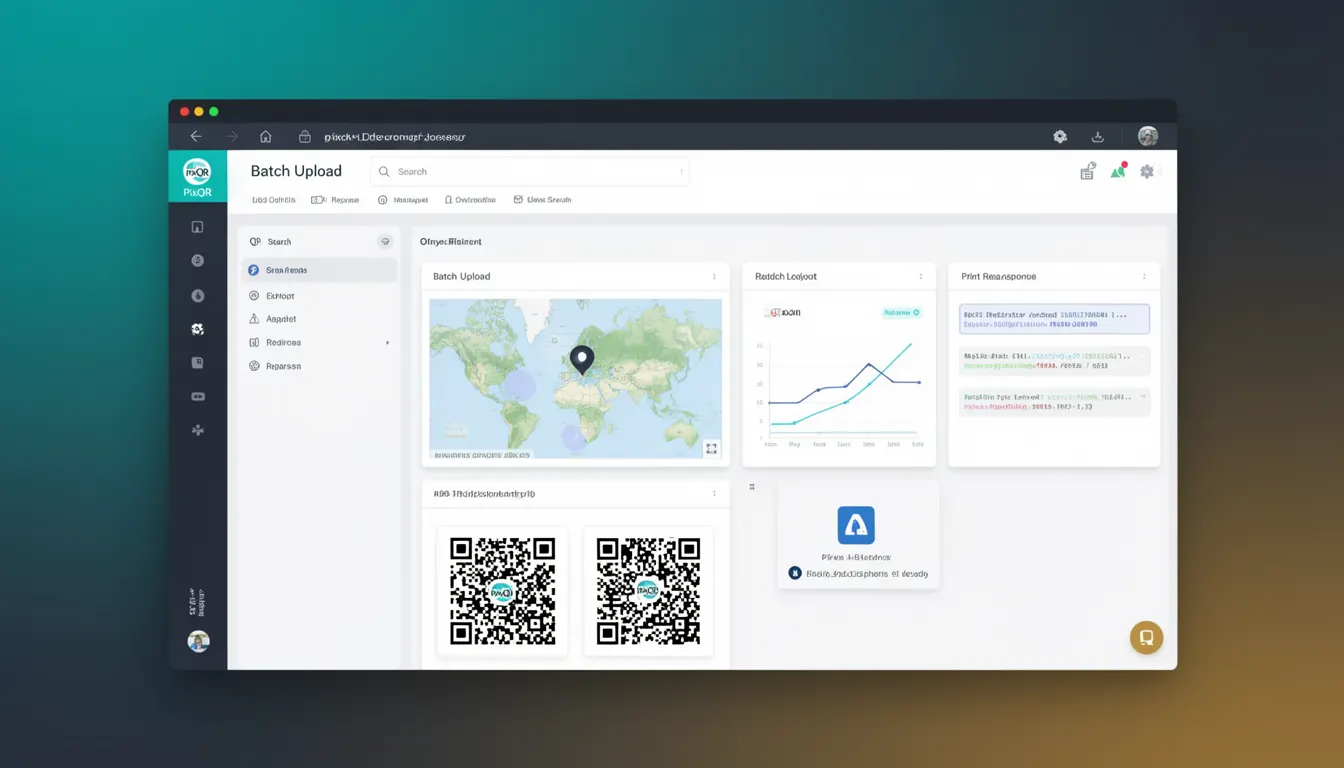
Batch Upload is a feature within PixQR's QR code generation platform that enables users to create, manage, and export multiple QR codes simultaneously. Instead of generating QR codes one at a time, developers and content managers can upload a list of URLs, metadata, or other parameters in bulk, streamlining workflows for large-scale deployment.
This functionality is especially useful for marketing teams, e-commerce platforms, and businesses managing extensive physical or digital assets that require QR codes. For example, a company might upload a CSV file containing product IDs, URLs, and custom labels to generate hundreds of unique QR codes for inventory tracking or promotional campaigns.
Why It Matters
Batch Upload significantly improves efficiency in large-scale QR code deployment. It reduces manual effort, minimizes human error, and accelerates time-to-market for campaigns involving many QR codes. For developers, it simplifies integration with backend systems and APIs, enabling automation of QR code generation workflows.
From a security and operational standpoint, batch processing ensures consistency in code formatting, branding, and metadata, reducing the risk of misconfigurations or unsafe redirects. For content managers, it supports scalability in managing dynamic QR code assets, particularly in environments with strict compliance or audit requirements.
How It Works
Batch Upload in PixQR operates through a structured process involving file upload, validation, processing, and result generation. The system accepts various input formats, including CSV, JSON, and Excel files, and parses the data to generate QR codes according to defined parameters.
- Users upload a structured data file containing required fields such as URLs, labels, or custom attributes.
- The system validates the data for format, length, and content, rejecting invalid or malformed entries.
- Each row in the file is processed to generate a QR code with associated metadata or redirect rules.
- Generated QR codes are stored in a centralized system with unique identifiers and metadata for tracking and analytics.
- Results are returned as downloadable assets or via API endpoints, allowing integration into existing workflows.
Quick Reference
| Item | Purpose | Notes |
|---|---|---|
| File Format | Input type for batch data | Supports CSV, JSON, Excel |
| Validation Rules | Checks for data integrity | URLs must be valid and accessible |
| Processing Status | Tracks batch job progress | Queued, Processing, Completed, Failed |
| Export Options | Output formats for generated codes | SVG, PNG, PDF, JSON |
| Metadata Fields | Custom attributes for each QR code | Custom labels, campaign tags, expiry dates |
Basic Example
PixQR Example QR
This QR links directly to this glossary page, so printed notes, onboarding docs, and support material can bring scanners back to the current reference.
/glossary/qr-code-generators/qr-code-generators-batch-upload

This basic example demonstrates how a developer might structure a CSV file for a batch upload to generate QR codes for a set of URLs.
url,label
https://example.com/product1,Product 1
https://example.com/product2,Product 2
https://example.com/product3,Product 3
The example shows a simple two-column CSV file with a URL and a label. The system reads each row and creates a QR code with the URL as the target and the label as a custom identifier.
Production Example
In a production environment, a batch upload might include validation, error handling, and structured metadata. The following example shows how a system might process a JSON input file for batch QR generation.
{
  "batch_id": "b123456",
  "codes": [
    {
      "url": "https://shop.example.com/item1",
      "label": "Item 1",
      "campaign": "Summer Sale",
      "expires": "2025-06-30"
    },
    {
      "url": "https://shop.example.com/item2",
      "label": "Item 2",
      "campaign": "Summer Sale",
      "expires": "2025-06-30"
    }
  ]
}
This JSON format allows for richer metadata, including campaign tags and expiration dates. It is suitable for integration with backend systems and supports complex tracking or analytics workflows.
Common Mistakes
- Not validating input data before upload, leading to failed batch jobs or invalid QR codes.
- Using unsupported file formats, which may cause upload errors or incomplete processing.
- Ignoring metadata field constraints, resulting in inconsistent or missing attributes in generated codes.
- Overlooking the batch size limits, which can cause timeouts or system overload.
- Not handling errors in the batch response, leading to untracked failures or missing QR codes.
Security And Production Notes
- Always validate URLs and metadata to prevent malicious redirects or injection attacks.
- Implement rate limiting on batch upload endpoints to avoid abuse or system degradation.
- Ensure file uploads are scanned for malware and sanitized before processing.
- Use secure protocols (HTTPS) for file transfers and API communication.
- Log batch job status and errors for audit and debugging purposes.
Related Concepts
Batch Upload is closely related to QR code generation workflows, API integration, and data management systems. It connects to concepts such as dynamic redirects, analytics tracking, and secure code deployment. It also ties into broader platform features like batch export, metadata management, and operational automation.