 PixQR
PixQR
Overview
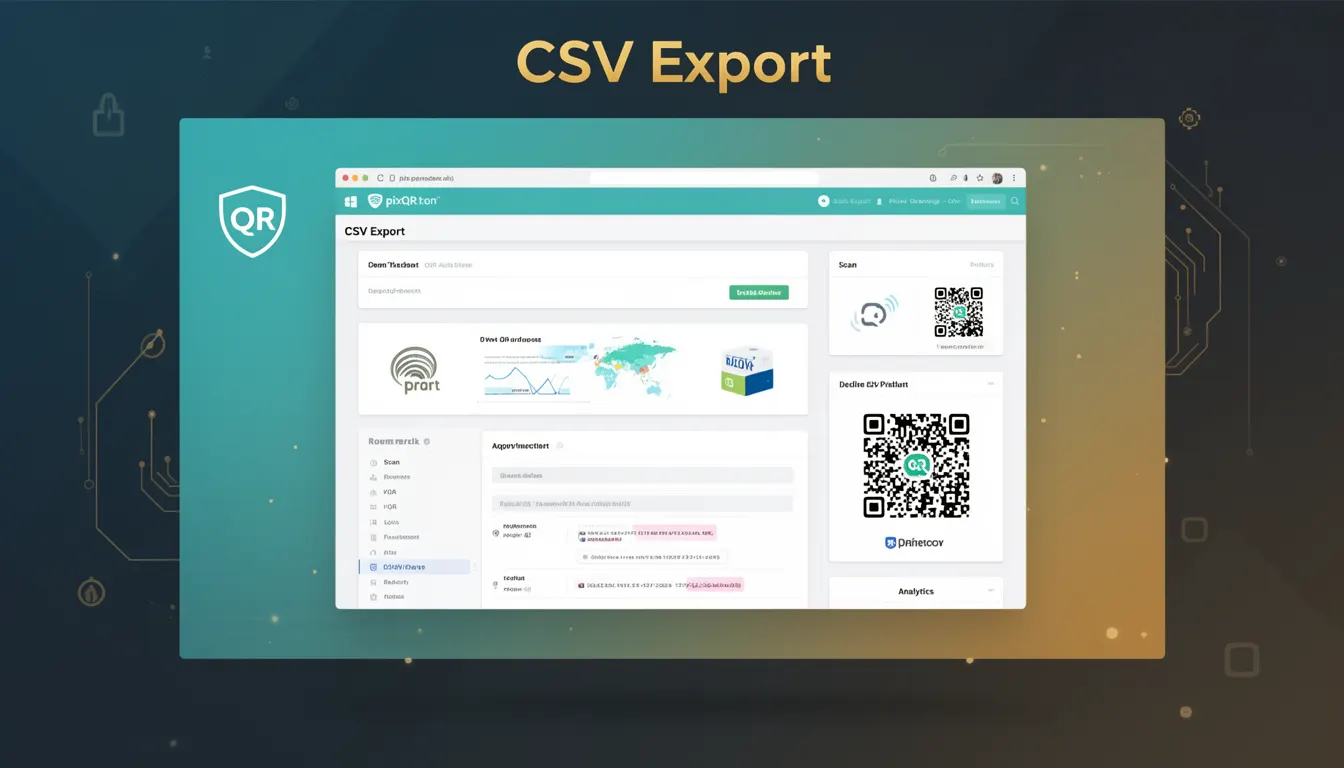
CSV Export is a feature within PixQR that allows users to download QR code data in Comma-Separated Values (CSV) format. This functionality enables developers and administrators to manage, analyze, or integrate QR code information with external systems, such as analytics platforms, CRM tools, or database systems.
When a user exports QR codes via PixQR, the system compiles relevant metadata about each QR code into a structured file. This file can then be imported into spreadsheet applications, data processing tools, or backend systems for further use. The CSV format ensures broad compatibility and ease of processing across platforms.
Why It Matters
For developers working with PixQR, CSV Export serves as a bridge between QR code generation and external data workflows. It allows for batch processing, historical analysis, and integration with third-party tools that require structured data input. For instance, a marketing team might export QR code data to analyze scan trends or campaign performance, while a system administrator may use the data to audit generated codes or monitor usage.
Without this export capability, QR code metadata would remain isolated within the PixQR interface, limiting its utility for data-driven decision-making or automated reporting. In a production environment, CSV Export supports scalable data management and reduces manual effort in extracting and processing QR code information.
How It Works
CSV Export in PixQR operates by compiling a set of predefined fields from QR code records into a downloadable file. The system processes each QR code in a selected batch or view, extracting attributes such as ID, URL, creation date, scan count, and custom parameters. These fields are then formatted into rows and columns, separated by commas, and saved as a .csv file.
- CSV Export is triggered via a UI action within the PixQR dashboard, typically found in a batch operations or data management section.
- Exported data includes standard fields like QR code identifier, target URL, creation timestamp, and scan statistics.
- Custom metadata or tags assigned to QR codes are also included in the exported CSV if configured in the export settings.
- The file is generated server-side and streamed to the user’s browser, ensuring no client-side processing overhead.
- Exported files are limited to 100,000 rows to prevent performance degradation and memory issues during download.
Quick Reference
| Item | Purpose | Notes |
|---|---|---|
| Export Button | Initiates CSV download | Located in batch operations panel |
| Column Mapping | Defines which fields to include | Customizable in export settings |
| Row Limit | Maximum number of rows | 100,000 rows per file |
| File Format | Output format | Standard CSV with UTF-8 encoding |
| Timestamps | Includes creation and last scan date | ISO 8601 format |
Basic Example
PixQR Example QR
This QR links directly to this glossary page, so printed notes, onboarding docs, and support material can bring scanners back to the current reference.

This basic example demonstrates how a user might initiate a CSV export from a list of QR codes. The export includes only the default fields such as ID, URL, and scan count.
1. Navigate to QR Code List in PixQR Dashboard
2. Select multiple QR codes using checkboxes
3. Click "Export Selected" button
4. Choose "CSV" as export format
5. Download generated .csv file
This flow is straightforward and does not require any custom code or API interaction. It is intended for users who need a quick and simple way to extract QR data.
Production Example
In a production environment, a developer might configure an automated export process to fetch QR code data daily for analytics. This example shows how to set up a structured export with custom metadata.
1. Access Export Settings in PixQR Admin Panel
2. Select "Custom Fields" to include tags and campaign data
3. Set date range for export (e.g., last 30 days)
4. Schedule export to run nightly via API or UI
5. Store exported files in a secure data lake or analytics system
This version is more robust and suitable for production because it includes configuration options, scheduling, and integration with backend systems, making it scalable and maintainable.
Common Mistakes
- Exporting large datasets without row limits may cause browser or server timeouts, leading to incomplete exports.
- Assuming all QR code fields are exported by default can lead to missing data in reports or integrations.
- Not validating or sanitizing CSV output before importing into third-party systems can introduce data corruption or security issues.
- Using exported files in systems that do not support UTF-8 encoding can result in character display errors.
- Overlooking the need to update export configurations when QR code attributes change can lead to outdated or incorrect data in reports.
Security And Production Notes
- CSV files are generated server-side and are not exposed to client-side code, reducing the risk of data leakage.
- Exported files are sanitized to prevent injection attacks, especially when including user-provided URLs or metadata.
- Access to export features is restricted by user roles, ensuring only authorized personnel can download sensitive QR data.
- Files are timestamped and stored temporarily on the server to prevent unauthorized access after download.
- Export settings support encryption of sensitive fields, such as URLs or tags, if enabled in the platform configuration.
Related Concepts
CSV Export is closely related to several other concepts in QR code management and data workflows. Batch Operations allow users to apply actions like export or deletion to multiple QR codes at once. API Integration provides a programmatic way to fetch QR data, which can be an alternative to manual CSV exports. Data Privacy regulations, such as GDPR, may require that exported data be handled securely. Scan Analytics often relies on exported data to generate reports. QR Code Lifecycle Management includes export as a tool for auditing and archiving QR code records.