 PixQR
PixQR
Overview
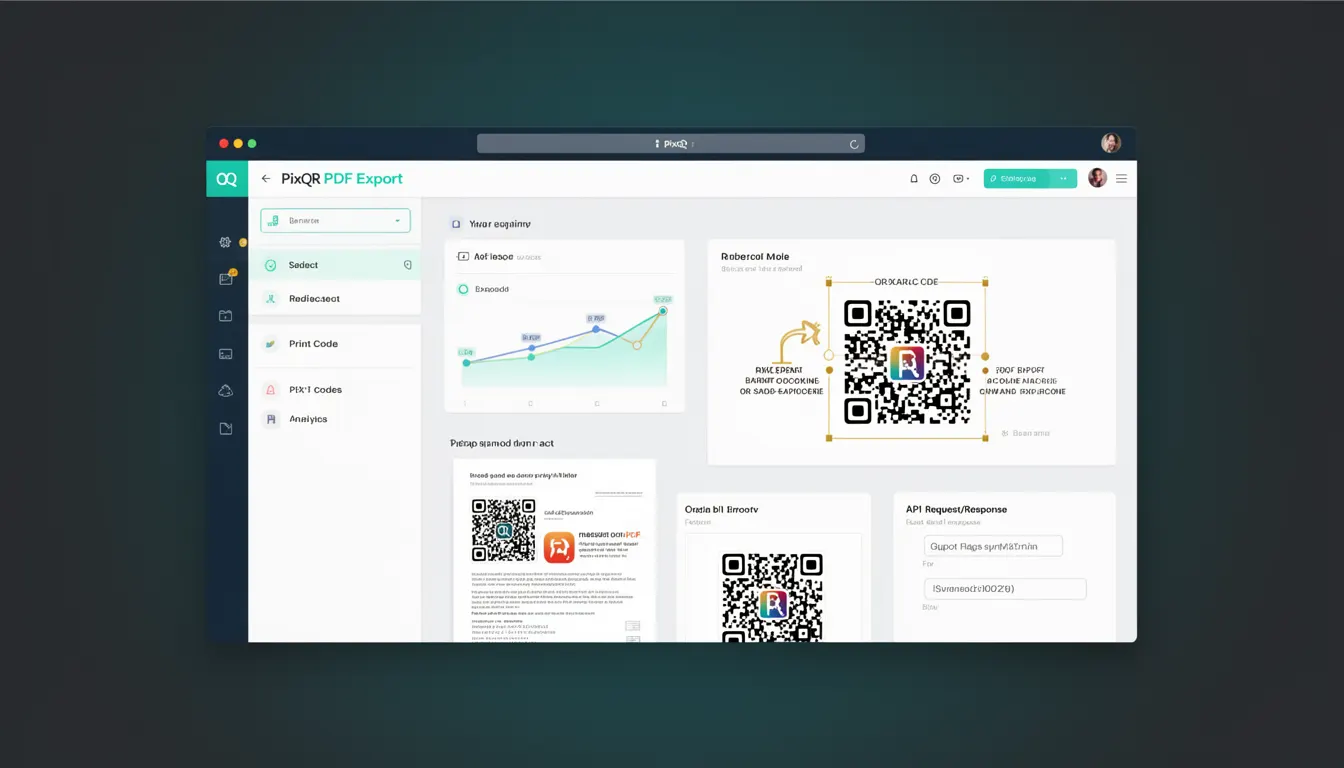
PDF Export is a feature within QR code generation platforms that allows users to generate and download QR codes in PDF format. This functionality enables developers and content creators to integrate QR codes into printable documents, marketing materials, presentations, and other formats where a PDF output is preferred or required.
In the context of PixQR, PDF Export is part of the broader QR code generation and management suite. It supports exporting QR codes as downloadable PDF files, which can be used for physical distribution, branding consistency, or integration into automated workflows. The feature is particularly valuable for businesses that need to maintain brand-safe design standards and ensure that QR codes are reliably scannable in print environments.
Why It Matters
PDF Export plays a critical role in production environments where QR codes are intended for physical distribution or formal documentation. It ensures that QR codes are rendered with high fidelity, maintain scan reliability, and comply with brand guidelines. For developers managing large-scale QR code deployments, PDF Export streamlines the process of creating and distributing QR codes for print, signage, or marketing campaigns.
From a user experience perspective, PDF Export supports accessibility and compliance requirements. It allows users to download a static, high-resolution version of a QR code for use in presentations, brochures, or printed materials. Additionally, it provides a consistent output format that can be easily integrated into automated systems or content management workflows.
How It Works
PDF Export in PixQR operates by converting the generated QR code into a vector-based PDF file. The process involves rendering the QR code at a resolution suitable for print and embedding it within a PDF document structure. This ensures that the QR code remains scannable even when scaled or printed at different resolutions.
- QR code generation parameters are preserved during export, including size, color, and error correction levels.
- PDF export supports both static and dynamic QR codes, ensuring that the embedded URL or content remains functional.
- Export options include resolution settings, page layout, and embedded metadata such as creation date and author information.
- Output files are validated for scan reliability before being made available for download.
- The feature integrates with PixQR's analytics and tracking capabilities, allowing developers to monitor usage of exported QR codes.
Quick Reference
| Item | Purpose | Notes |
|---|---|---|
| Resolution setting | Controls print quality | Default is 300 DPI for print-ready output |
| Page layout | Determines PDF structure | Supports single QR code or multiple codes per page |
| Error correction level | Ensures scannability | Preserved from QR generation settings |
| Color mode | Defines visual appearance | Supports black-and-white and color options |
| Metadata embedding | Provides tracking and attribution | Includes creation timestamp and user ID |
Basic Example
PixQR Example QR
This QR links directly to this glossary page, so printed notes, onboarding docs, and support material can bring scanners back to the current reference.

This basic example demonstrates how to initiate a PDF export for a QR code using PixQR's API. It shows the structure of the request and the expected response format.
{
  "qr_code_id": "abc123",
  "format": "pdf",
  "resolution": 300,
  "layout": "single"
}
The request specifies the QR code ID, output format as PDF, resolution at 300 DPI, and layout as a single QR code per page. The response includes a download URL for the generated PDF file.
Production Example
This production example illustrates how to safely configure a PDF export with validation and error handling. It includes checks for valid QR code IDs, appropriate resolution settings, and ensures that the output meets branding standards.
{
  "qr_code_id": "xyz789",
  "format": "pdf",
  "resolution": 300,
  "layout": "single",
  "metadata": {
    "author": "marketing-team",
    "brand": "pixqr-brand",
    "created_at": "2024-05-20T10:00:00Z"
  },
  "validate": true
}
This version includes metadata for tracking and attribution, ensures validation is enabled, and is structured to support integration into larger systems. It ensures that exported QR codes are consistent with branding guidelines and can be reliably scanned in print environments.
Common Mistakes
- Using low resolution settings (less than 300 DPI) for print output, which can lead to poor scan reliability.
- Ignoring error correction levels during export, resulting in QR codes that fail to scan in real-world conditions.
- Not validating QR code IDs before initiating export, which can cause API errors or data inconsistencies.
- Overlooking metadata inclusion, which reduces traceability and tracking capabilities.
- Assuming that exported PDFs maintain the same visual quality as screen-based QR codes, without considering print-specific rendering.
Security And Production Notes
- Ensure that exported QR codes do not contain sensitive or private data that could be exposed through print or distribution.
- Validate all input parameters before initiating export to prevent malformed requests or unauthorized access.
- Use secure download URLs with time-limited access tokens to prevent unauthorized retrieval of exported files.
- Implement logging for all PDF export operations to monitor usage and detect anomalies.
- Apply consistent branding and color schemes across all exported QR codes to maintain visual integrity.
Related Concepts
PDF Export is closely related to QR code generation, dynamic redirect management, analytics, branding consistency, and print reliability. It connects with features like scan tracking and content management, ensuring that QR codes remain functional and secure throughout their lifecycle. The export functionality also integrates with PixQR's privacy controls and operational workflows, supporting compliance with data protection regulations.