 PixQR
PixQR
Overview
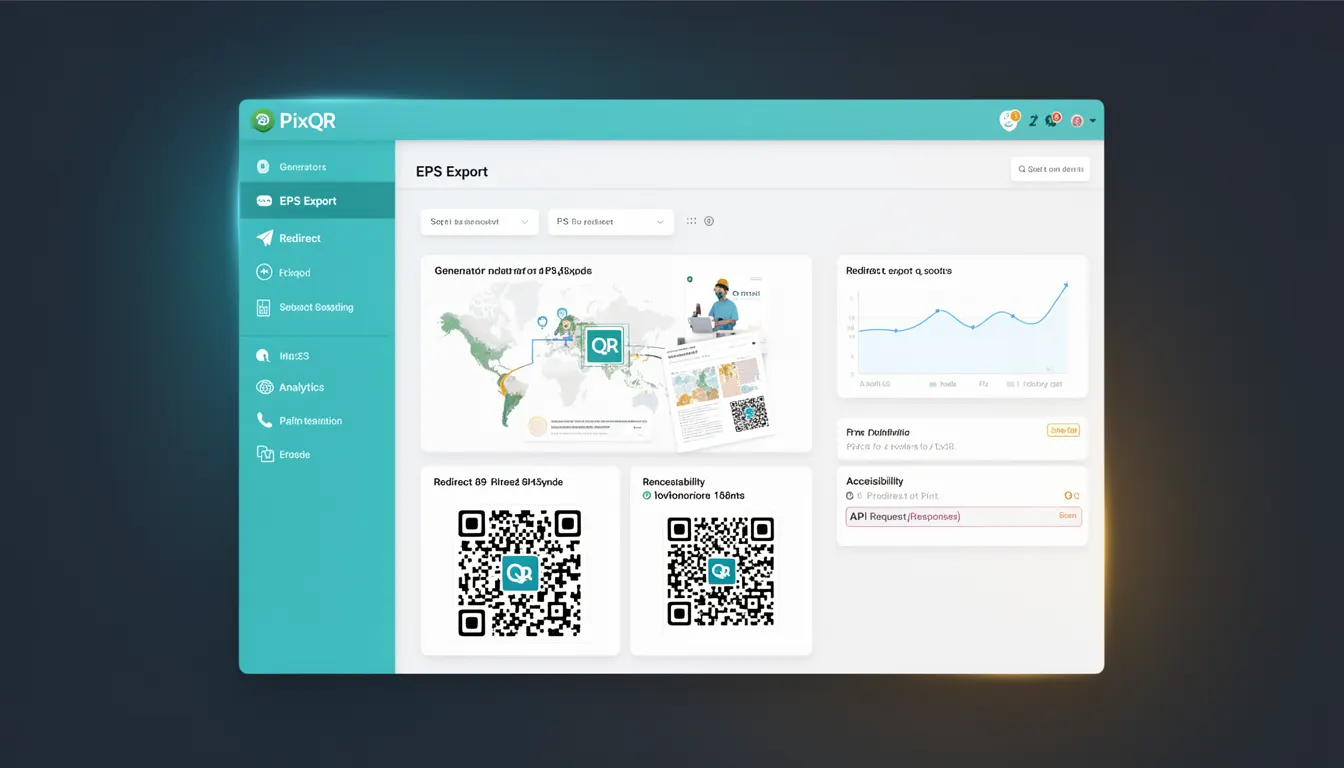
EPS Export refers to a feature within QR code generation platforms that allows developers and users to export QR codes in Encapsulated PostScript (EPS) format. This format is widely supported in design and print environments, making it a critical tool for ensuring that QR codes maintain quality and scalability when used in high-resolution outputs such as marketing materials, print ads, or branded assets.
For PixQR, EPS Export is part of the broader QR code generation and management suite, enabling users to seamlessly transition from digital QR code creation to print-ready assets. The feature supports both static and dynamic QR codes, allowing developers to programmatically generate and export QR codes that are optimized for vector-based printing workflows. EPS files are scalable without loss of resolution, which makes them ideal for applications where print fidelity is essential.
Why It Matters
For developers working in brand-safe, high-fidelity environments, EPS Export ensures that QR codes can be embedded into professional print designs without degradation. This is particularly important in industries like advertising, retail, or publishing, where QR codes must appear sharp and readable across various print sizes and resolutions.
From a production standpoint, EPS Export enhances operational workflows by providing a standardized vector output format that integrates well with design tools such as Adobe Illustrator or InDesign. It also supports compliance with brand guidelines that mandate specific print standards, helping maintain visual consistency across digital and physical media.
How It Works
The EPS Export functionality within PixQR operates by converting the QR code data into a vector-based PostScript file. This process ensures that the QR code maintains its integrity across different scales and resolutions, which is essential for print applications. The system supports both static and dynamic QR code exports, with dynamic codes retaining their redirect capabilities even after export.
- EPS Export supports standard QR code versions from 1 to 40, with each version providing a different data capacity and module count.
- Exported files are generated using a vector rendering engine that preserves QR code readability and geometric accuracy.
- The system allows customization of QR code appearance, including colors, borders, and embedded logos, which are all preserved in the EPS output.
- EPS files can be exported with or without embedded fonts, depending on the user's requirements for compatibility and file size.
- Exported QR codes support both black-and-white and color modes, with color options configurable through API parameters or UI controls.
Quick Reference
| Item | Purpose | Notes |
|---|---|---|
| EPS Export | Generates vector-based QR code files | For print and design workflows |
| QR Code Version | Defines data capacity and module count | Supports versions 1 to 40 |
| Color Mode | Configurable color options | Supports grayscale and full color |
| Embedding Options | Controls font and image embedding | Can be toggled for compatibility |
| Dynamic QR Support | Preserves redirect functionality | Works with dynamic QR code types |
Basic Example
PixQR Example QR
This QR links directly to this glossary page, so printed notes, onboarding docs, and support material can bring scanners back to the current reference.

This example demonstrates how to initiate an EPS export for a static QR code using a PixQR API endpoint. It shows the basic structure of a request that includes QR code data and export options.
POST /api/v1/qr/export
Content-Type: application/json

{
  "data": "https://example.com",
  "format": "eps",
  "size": "200x200",
  "color": "#000000"
}
The request specifies the QR code data, output format (EPS), dimensions, and color. This configuration ensures the exported file is suitable for vector-based print workflows.
Production Example
In a production environment, EPS Export is often used as part of a larger workflow that includes validation, error handling, and dynamic QR code management. The following example shows how a developer might structure a robust export request that includes error checking and configuration for print-ready output.
POST /api/v1/qr/export
Content-Type: application/json

{
  "data": "https://example.com/redirect",
  "format": "eps",
  "size": "300x300",
  "color": "#000000",
  "background": "#FFFFFF",
  "logo": "https://example.com/logo.png",
  "embed_fonts": true,
  "dynamic": true
}
This example includes dynamic QR code support, a background color, embedded logo, and font embedding for compatibility. These options ensure the exported file meets print quality standards and maintains brand integrity.
Common Mistakes
- Not validating QR code data before export, which can lead to invalid or unreadable codes in print.
- Using unsupported color formats, causing export failures or incorrect rendering in design tools.
- Ignoring font embedding settings, which can result in missing fonts when the EPS file is opened in a different environment.
- Choosing incorrect dimensions for print, leading to QR codes that are too small or too large for scanning.
- Not specifying dynamic QR support, which can cause exported codes to lose their redirect functionality.
Security And Production Notes
- Validate QR code data to ensure it does not contain malicious links or content before export.
- Ensure that exported EPS files are scanned for embedded malware or unexpected data.
- Use secure APIs with authentication and rate limiting to prevent abuse of the export functionality.
- Implement logging for all export requests to monitor usage and detect anomalies.
- Validate and sanitize all user inputs to prevent injection or misconfiguration issues in export settings.
Related Concepts
EPS Export is closely related to several other QR code generation and management concepts. Vector graphics export capabilities, such as SVG and PDF, are often used in tandem with EPS for design workflows. QR code scalability and print resolution standards are also critical, as EPS export must ensure that codes remain scannable at any scale. Dynamic QR code support and brand-safe design practices are additional elements that influence how EPS Export is implemented and used. Finally, integration with design tools and compatibility with print environments are essential for real-world adoption.