 PixQR
PixQR
Overview
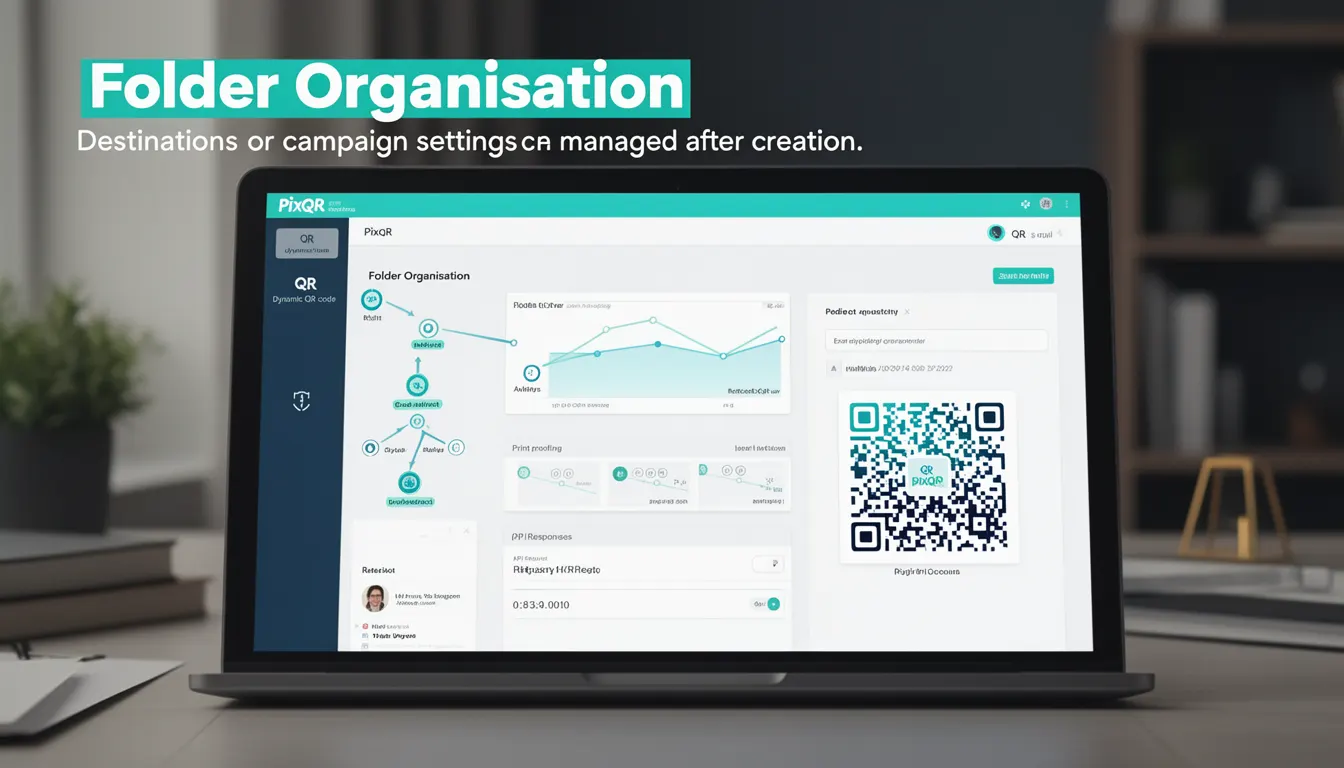
Folder Organisation in PixQR refers to a system for structuring and managing dynamic QR code destinations and campaign settings post-creation. This feature allows developers and marketers to group related QR codes, redirects, or analytics into logical folders, improving control, scalability, and operational clarity.
When creating dynamic QR codes, especially in large-scale deployments, it's critical to maintain a clean, logical structure. Folder Organisation supports this by enabling users to categorize QR codes by campaign, brand, region, or other business logic. This capability is particularly valuable in environments where hundreds or thousands of QR codes are generated and managed.
Why It Matters
Folder Organisation significantly impacts operational efficiency and system maintainability. In large-scale deployments, the ability to manage QR codes in hierarchical structures prevents clutter and reduces errors. It allows teams to isolate and manage specific sets of QR codes without affecting others, which is essential for security, compliance, and auditability.
From a developer perspective, Folder Organisation simplifies API interactions. Instead of querying all QR codes in a system, developers can target specific folders, reducing API load and improving response times. It also supports granular permissions and access controls, which are crucial in multi-team environments.
How It Works
Folder Organisation in PixQR is implemented through a hierarchical folder structure that can be managed via the dashboard or API. Each folder can contain QR codes, redirects, or other campaign-related entities. The system supports nested folders, enabling complex organisational hierarchies.
- Each folder has a unique identifier (ID) that can be used in API requests to retrieve or update its contents.
- Folders support metadata such as name, description, creation date, and last modified timestamp.
- QR codes can be moved between folders, and folders can be renamed, deleted, or archived.
- Access control lists (ACLs) can be assigned at the folder level, restricting who can view, edit, or delete QR codes within that folder.
- Analytics and reporting are available at both the folder and individual QR code levels, providing granular insights.
Quick Reference
| Item | Purpose | Notes |
|---|---|---|
| Folder ID | Unique identifier for a folder | Used in API endpoints to reference folder contents |
| Folder Name | Human-readable name for the folder | Must be unique within the parent folder |
| Parent Folder ID | Identifier of the parent folder | Null for root-level folders |
| ACL | Access control list for folder permissions | Can restrict access to specific users or roles |
| Folder Metadata | Additional data like creation date and description | Supports custom fields for business logic |
Basic Example
PixQR Example QR
This QR links directly to this glossary page, so printed notes, onboarding docs, and support material can bring scanners back to the current reference.
/glossary/qr-code-dynamic/dynamic-qr-codes-folder-organisation

The following example demonstrates how to create a folder using the PixQR API. It illustrates a minimal implementation that sets up a new folder structure for campaign management.
{
  "name": "Summer Campaign 2024",
  "parent_id": null,
  "metadata": {
    "description": "QR codes for summer marketing initiative"
  }
}
This JSON payload creates a new root-level folder named "Summer Campaign 2024". The parent_id is set to null, indicating it is a top-level folder. The metadata field allows for custom descriptions or tags that can be used for reporting or filtering.
Production Example
In a production environment, Folder Organisation is used to manage access and scale QR code deployments. The following example shows a more complete folder structure with permissions and metadata, suitable for a large enterprise.
{
  "name": "E-commerce",
  "parent_id": "root",
  "acl": {
    "read": ["team-marketing", "team-analytics"],
    "write": ["team-marketing"],
    "delete": ["admin"]
  },
  "metadata": {
    "created_by": "marketing-team",
    "budget": "$50000",
    "campaign_start": "2024-06-01",
    "campaign_end": "2024-08-31"
  }
}
This example shows a folder named "E-commerce" under a root folder, with defined access controls and campaign metadata. The read permission allows marketing and analytics teams to view QR codes, while write is restricted to the marketing team. This ensures compliance and reduces accidental changes.
Common Mistakes
- Not using folder IDs when querying QR codes can lead to performance issues in large systems.
- Creating folders with duplicate names at the same level can cause confusion and API errors.
- Ignoring access control settings can expose sensitive QR code data to unauthorized users.
- Using folders without metadata can make it difficult to track campaign or project ownership.
- Deleting a folder without moving its contents can result in data loss or orphaned QR codes.
Security And Production Notes
- Always validate folder names and IDs to prevent injection attacks or accidental misconfigurations.
- Implement role-based access controls at the folder level to restrict sensitive operations.
- Use metadata fields to store audit logs or compliance-related information.
- Regularly audit folder structures to prevent orphaned or unused folders from accumulating.
- Ensure folder deletion operations are logged and reversible in case of accidental removal.
Related Concepts
Folder Organisation is closely related to several other concepts in QR code management and system design:
- API Access Control: Folder-level permissions are a subset of broader API access control mechanisms.
- QR Code Lifecycle Management: Folders help manage QR codes through their lifecycle stages, from creation to retirement.
- Dynamic Redirects: Folder Organisation allows grouping of redirects for easier management and analytics.
- Analytics and Reporting: Folder-based reporting enables targeted insights for specific campaigns or teams.
- Operational Workflows: Folder structures support structured workflows, especially in team-based environments.