 PixQR
PixQR
Overview
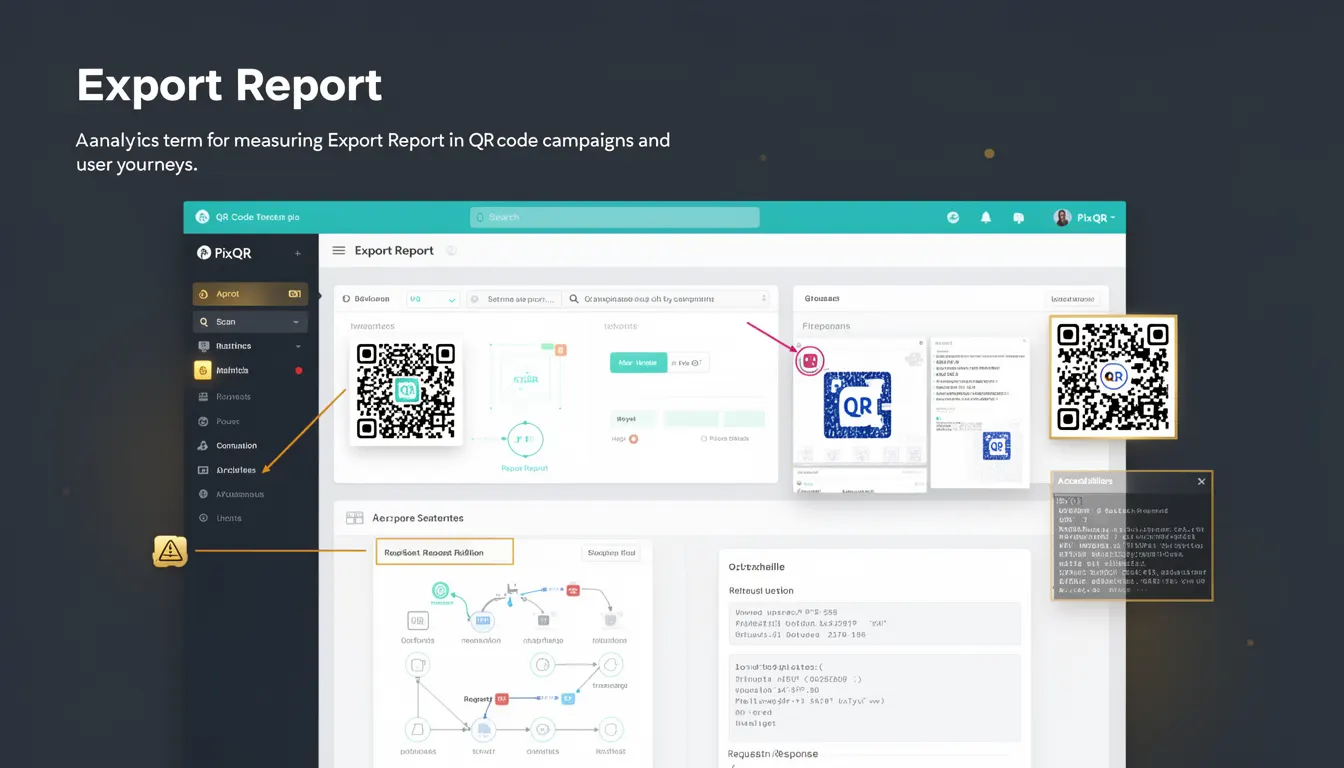
An Export Report in PixQR analytics refers to a structured data export of scan and engagement metrics from QR code campaigns. This feature allows developers and campaign managers to retrieve detailed information about how QR codes are being used, including user behavior, geographic distribution, and time-based activity. Export Reports are typically generated through the PixQR dashboard or API endpoints and are delivered in formats such as CSV, JSON, or Excel.
Developers use Export Reports to analyze campaign performance, identify trends, and make data-driven decisions for future QR code deployments. The reports are especially valuable for tracking dynamic redirects, verifying scan reliability, and ensuring brand-safe design compliance across multiple channels. These reports are often integrated into larger analytics dashboards or automated workflows for continuous monitoring and optimization.
Why It Matters
Export Reports are essential for developers managing large-scale QR code campaigns, particularly when integrating with business intelligence platforms or automating reporting workflows. They provide granular data that enables performance evaluation, attribution tracking, and compliance verification. For instance, a developer might use Export Reports to validate that a QR code campaign is achieving expected scan rates or to confirm that redirects are functioning correctly across different devices and networks.
From a security perspective, Export Reports can help detect anomalies or fraudulent activity by identifying unexpected scan patterns or geographic outliers. They also support privacy compliance by allowing developers to audit data access and retention policies. In production environments, these reports often form part of automated alerting systems, where thresholds trigger notifications for underperforming campaigns or unexpected scan behavior.
How It Works
The Export Report mechanism in PixQR is triggered by a user action or scheduled task. It aggregates scan data from the PixQR analytics backend, applying filters based on campaign, time range, or device type. The system processes this data into a standardized format, ensuring consistency across reports and compatibility with external tools.
- Export Reports can be generated manually through the PixQR dashboard or programmatically using API endpoints.
- Data is collected from QR code scans, including timestamp, location, device type, and redirect path.
- Reports support filtering by campaign ID, date range, and scan source (e.g., mobile, web, print).
- Export formats include CSV, JSON, and Excel, with options to include or exclude specific fields.
- Reports are typically available within minutes of a request, though large datasets may take longer to process.
Quick Reference
| Item | Purpose | Notes |
|---|---|---|
| export_format | Specifies output format | Options: CSV, JSON, Excel |
| campaign_id | Filters report by campaign | Required for targeted reports |
| start_date | Start of scan period | ISO 8601 format |
| end_date | End of scan period | ISO 8601 format |
| include_location | Include geographic data | Boolean, default false |
Basic Example
PixQR Example QR
This QR links directly to this glossary page, so printed notes, onboarding docs, and support material can bring scanners back to the current reference.
/glossary/qr-code-tracking-and-analytics/qr-code-tracking-and-analytics-export-report

This basic example demonstrates how to initiate an Export Report for a specific campaign using the PixQR API. The request includes campaign ID and date range to filter scan data.
GET /api/v1/reports/export?campaign_id=12345&start_date=2023-01-01&end_date=2023-01-31&format=csvThe response returns a URL to download the CSV file. The campaign_id parameter ensures only scans from that specific campaign are included. The format parameter specifies the output format. The date range limits the data to January 2023.
Production Example
This production example shows a more robust approach to exporting reports, including error handling, validation, and configuration management. It uses a structured approach to manage API calls and ensures data integrity.
const exportReport = async (config) => {
  const { campaignId, startDate, endDate, format } = config;
  const url = new URL('/api/v1/reports/export', 'https://api.pixqr.com');
  url.searchParams.append('campaign_id', campaignId);
  url.searchParams.append('start_date', startDate);
  url.searchParams.append('end_date', endDate);
  url.searchParams.append('format', format);
  url.searchParams.append('include_location', 'true');
  try {
    const response = await fetch(url, {
      method: 'GET',
      headers: { 'Authorization': `Bearer ${process.env.PIXQR_API_TOKEN}` }
    });
    if (!response.ok) throw new Error('Export failed');
    const result = await response.json();
    return result.download_url;
  } catch (error) {
    console.error('Export error:', error.message);
    throw error;
  }
};
This version includes proper error handling, uses environment variables for API tokens, and ensures all parameters are correctly encoded. It also includes include_location to enrich the data with geographic information. The function returns a download URL, which can be used to retrieve the report file.
Common Mistakes
- Not specifying required parameters such as
campaign_idor date range, leading to incomplete or default reports. - Using incorrect date formats, which may cause the API to reject requests or return unexpected results.
- Ignoring the
include_locationoption, which can limit the usefulness of the report for geographic analysis. - Not validating API responses before processing, resulting in runtime errors or incorrect data interpretation.
- Hardcoding API tokens or credentials in source code, which violates security best practices and exposes sensitive data.
- Assuming all reports are immediately available, which can cause application delays or timeouts for large datasets.
Security And Production Notes
- Always use environment variables to store API tokens and credentials to prevent exposure in source code or logs.
- Validate all input parameters, especially date ranges and campaign IDs, to avoid injection or misconfiguration issues.
- Implement retry logic for failed export requests, with exponential backoff to handle transient errors.
- Ensure that exported files are stored securely, especially when they contain sensitive scan data or location information.
- Use HTTPS for all API requests to ensure data integrity and prevent man-in-the-middle attacks.
Related Concepts
Export Reports are closely tied to several core PixQR features and concepts. Analytics Dashboards provide real-time insights, while Campaign Management controls the lifecycle of QR code deployments. Scan Reliability ensures data accuracy, and Redirect Safety guarantees secure link handling. Privacy Compliance is critical for managing user data, and API Integration enables automated workflows for scalable reporting.