 PixQR
PixQR
Overview
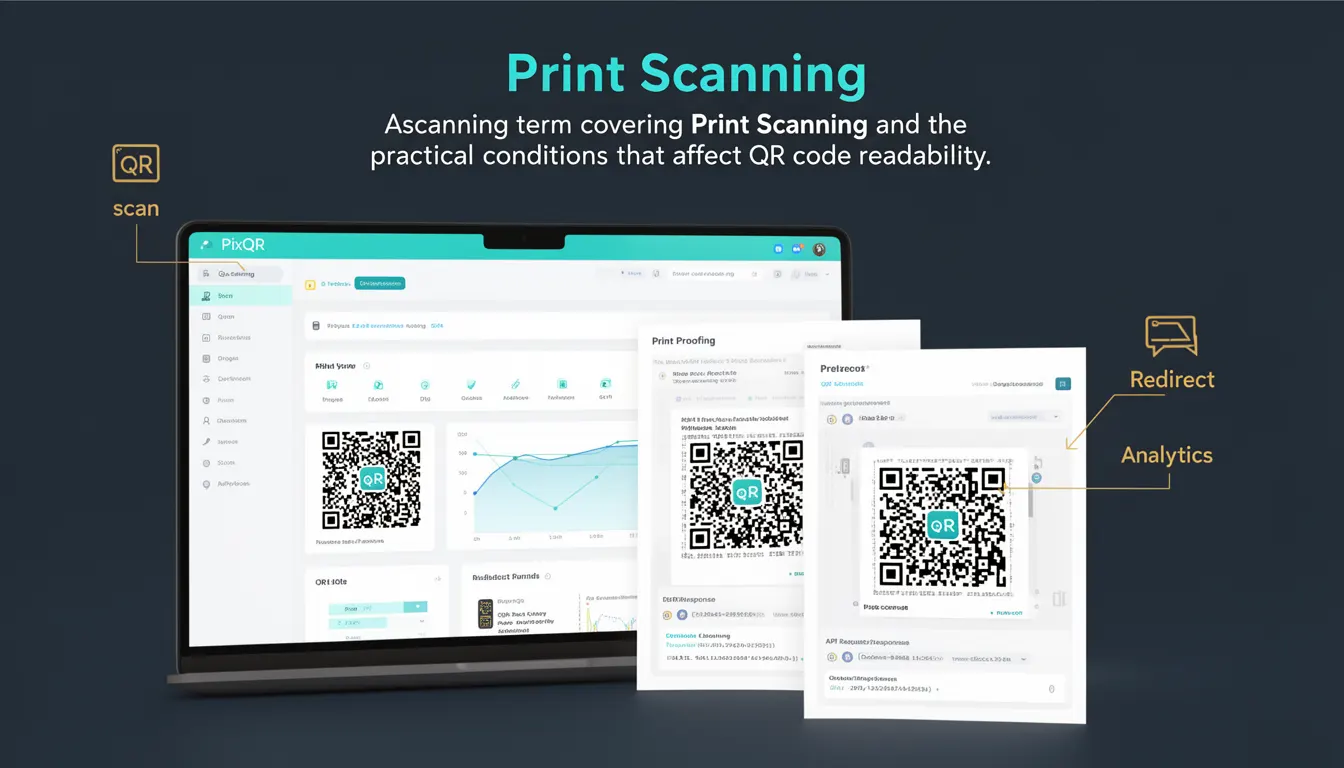
Print Scanning refers to the process of capturing and interpreting QR codes that have been printed on physical media such as posters, packaging, product labels, or marketing materials. In the context of PixQR, Print Scanning is a key component of the platform's operational workflow, enabling businesses to generate QR codes that are reliably scannable by mobile devices and ensure consistent user experience across diverse physical environments.
For developers working with PixQR, understanding Print Scanning is critical when designing QR code systems that must function reliably in real-world conditions. Unlike digital QR codes that are displayed on screens and can be optimized for resolution and contrast, printed QR codes must account for factors such as paper texture, ink quality, print resolution, lighting, and potential damage or wear during use. This makes Print Scanning a specialized area of focus in QR code development, particularly for applications involving brand-safe design, dynamic redirects, and secure operational workflows.
Why It Matters
Print Scanning directly impacts user experience, system reliability, and business outcomes. A QR code that fails to scan due to poor print quality or environmental factors can result in lost conversions, frustrated users, and wasted marketing investments. In PixQR's ecosystem, ensuring that generated QR codes are scannable across a range of print conditions is essential for maintaining trust in the platform’s reliability and performance.
From a security perspective, Print Scanning also plays a role in fraud prevention and brand integrity. Poorly printed QR codes may be misused or tampered with, especially in environments where physical tampering is a concern. For developers, this means implementing robust checks during QR code generation, including considerations for resolution, contrast, and environmental resilience. Additionally, the platform's analytics and tracking features rely on successful scan capture, making Print Scanning a foundational element for accurate data collection and campaign performance analysis.
How It Works
The process of Print Scanning involves multiple technical and environmental factors that affect QR code readability. When a QR code is printed, its scannability depends on the physical properties of the medium and the printing process. PixQR's platform provides tools and configurations to optimize QR codes for print, including resolution settings, contrast thresholds, and print-safe design guidelines.
- Print resolution settings determine the pixel density of the QR code, typically measured in dots per inch (DPI). Higher DPI values generally result in better scannability but may increase file size or printing cost.
- Contrast ratios between the QR code and background are crucial. PixQR recommends a minimum contrast of 70% to ensure reliable detection across various lighting conditions.
- QR code size and margin requirements are enforced to prevent scannability issues due to insufficient edge space or overly small modules.
- Environmental factors such as paper texture, ink absorption, and lighting conditions can degrade QR code quality. PixQR’s system accounts for these by applying adaptive algorithms to adjust for print variations.
- Dynamic redirects and tracking links embedded in QR codes must be preserved during the print process, ensuring that scanning leads to the intended destination without loss of functionality.
Quick Reference
| Item | Purpose | Notes |
|---|---|---|
| Resolution (DPI) | Controls print clarity | Recommended minimum 300 DPI for reliable scanning |
| Contrast Ratio | Ensures readability | Minimum 70% contrast between QR and background |
| Margin Size | Prevents scanning interference | At least 1 module wide margin recommended |
| Module Size | Defines QR code granularity | Must be large enough for device detection |
| Print Media Type | Adjusts for surface texture | Supports paper, plastic, fabric, and more |
Basic Example
PixQR Example QR
This QR links directly to this glossary page, so printed notes, onboarding docs, and support material can bring scanners back to the current reference.

This basic example demonstrates how a developer might configure a QR code for print scanning using PixQR’s API. It focuses on setting resolution and contrast to ensure compatibility with physical printing.
const qrConfig = {
  data: "https://example.com",
  printSettings: {
    resolution: 300,
    contrast: 75,
    margin: 1
  }
};

const qrCode = pixqr.generate(qrConfig);
The configuration sets the resolution to 300 DPI, a contrast ratio of 75%, and a 1-module margin to ensure optimal print scanning. These settings are applied during QR code generation to optimize for physical media.
Production Example
This production-ready example shows how a developer might integrate Print Scanning parameters into a scalable QR code generation system, including validation and error handling for print-specific settings.
function generatePrintQR(data, options = {}) {
  const defaultSettings = {
    resolution: 300,
    contrast: 70,
    margin: 1,
    mediaType: 'paper'
  };

  const config = { ...defaultSettings, ...options };

  if (config.resolution < 150) {
    throw new Error("Resolution must be at least 150 DPI for reliable print scanning");
  }

  const qrCode = pixqr.generate({
    data,
    printSettings: config
  });

  return qrCode;
}

const productQR = generatePrintQR("https://shop.example.com/product/123", {
  resolution: 400,
  contrast: 80
});
This version includes validation to ensure that print parameters meet minimum thresholds, making it suitable for production workflows. It also supports dynamic configuration of print settings, allowing for flexible deployment across various media types and use cases.
Common Mistakes
- Using low-resolution QR codes for print. This leads to scannability issues because the modules become too small to detect reliably.
- Ignoring contrast requirements. A QR code with insufficient contrast against its background may fail to scan under poor lighting or in low-quality prints.
- Not accounting for margin sizes. A QR code without adequate margin may be misread or misaligned by scanning devices.
- Choosing inappropriate media types. For example, using a print setting optimized for glossy paper on matte surfaces can cause scanning failure.
- Overlooking environmental factors. QR codes printed in high-traffic or outdoor environments may require special consideration for durability and scanning reliability.
Security And Production Notes
- Always validate print settings to ensure they meet minimum requirements for scannability and security.
- Use dynamic QR code generation with secure redirect mechanisms to prevent unauthorized tampering or link hijacking.
- Implement access controls for QR code configurations to avoid accidental exposure of sensitive data.
- Ensure that print quality metrics are logged for analytics and performance monitoring.
- Consider using PixQR's built-in tracking and scan analytics to identify and resolve issues with print-scanned QR codes.
Related Concepts
Print Scanning is closely connected to several other QR code development concepts. Dynamic Redirects ensure that scanned QR codes lead to intended destinations, while Scan Reliability measures how consistently a QR code can be read under various conditions. Brand-Safe Design ensures that QR codes are visually aligned with brand guidelines and maintain integrity in print. Privacy and Operational Security are also relevant, especially when QR codes are used in environments where data protection is a concern. Finally, Analytics and Reporting provide insights into how well Print Scanning performs in real-world use cases.