 PixQR
PixQR
Overview
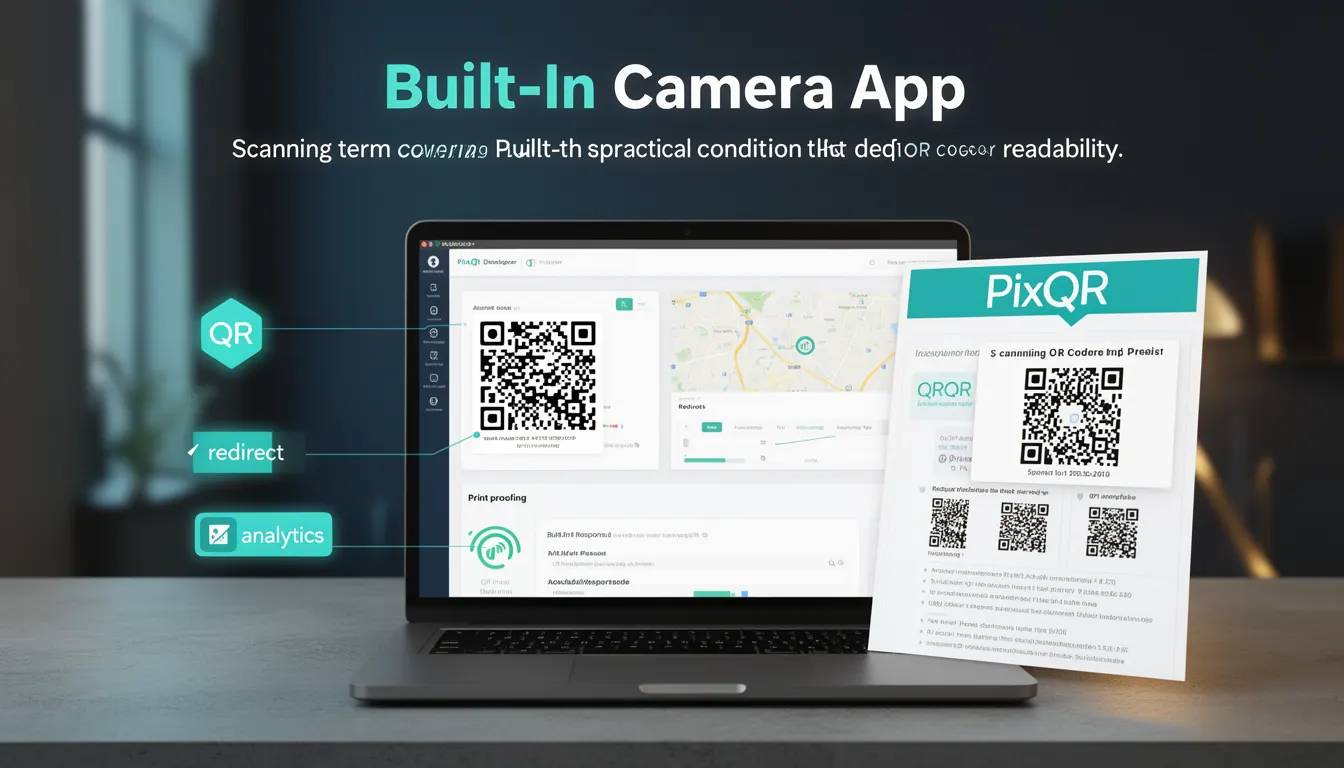
The Built-In Camera App term refers to the default camera application that is pre-installed on mobile devices and tablets, which users can invoke to scan QR codes. In the context of PixQR, understanding how this app functions and interacts with QR code generation and scanning is crucial for ensuring reliable, secure, and user-friendly experiences.
When a user scans a QR code using their device's default camera app, they are typically presented with a prompt or a direct interface to the camera. This process is distinct from using a third-party scanning app or a web-based scanner. The built-in camera app is part of the operating system and offers a streamlined, often optimized, scanning experience. PixQR leverages the reliability and familiarity of this app to improve QR code readability and reduce user friction.
Why It Matters
For developers and platform maintainers, the built-in camera app is significant because it represents the most common way users interact with QR codes in real-world settings. It impacts how QR codes are generated, tested, and deployed across platforms. If a QR code is not readable by the default camera app, it can result in failed scans, user confusion, or a degraded experience.
From a security perspective, the built-in camera app ensures a baseline level of trust and safety. It is less likely to be compromised by malware or malicious software compared to third-party apps. This makes it a preferred scanning method for PixQR, especially in scenarios involving sensitive data or financial transactions.
Performance-wise, the default camera app is optimized for device-specific hardware and operating system capabilities. This optimization helps ensure that QR code scanning is fast and accurate, which is essential for applications that rely on immediate redirects or user actions upon scanning.
How It Works
The built-in camera app operates as a native application that interfaces with the device’s hardware and operating system. It uses a combination of image processing, barcode detection algorithms, and real-time feedback to interpret QR codes. The scanning process involves capturing frames from the camera feed, analyzing them for QR code patterns, and triggering a response upon detection.
- The app typically supports standard QR code formats, including QR codes generated by PixQR, and can handle various sizes and resolutions.
- It is designed to work with the device’s autofocus and lighting conditions, ensuring optimal scanning even in low-light environments.
- Scanning behavior is usually immediate, with the app presenting a notification or redirecting to the linked URL as soon as the QR code is successfully read.
- It integrates with the operating system’s permissions model, requiring user consent to access the camera and potentially other features like location or clipboard.
- Some versions of the built-in app may offer enhanced features like multi-code detection, which allows scanning multiple QR codes in a single session.
Quick Reference
| Item | Purpose | Notes |
|---|---|---|
| Camera Access | Grants permission to use the device camera | Required for QR code scanning |
| QR Code Format Support | Recognizes standard QR codes | Includes PixQR-generated codes |
| Autofocus | Adjusts focus for clear scanning | Improves accuracy in various lighting |
| Lighting Adaptation | Adjusts to ambient light | Ensures readability in low-light conditions |
| Scan Feedback | Provides visual or audio cues | Enhances user experience |
Basic Example
PixQR Example QR
This QR links directly to this glossary page, so printed notes, onboarding docs, and support material can bring scanners back to the current reference.
/glossary/qr-code-scanning/qr-code-scanning-built-in-camera-app

This example demonstrates how a QR code can be generated for a URL that a user might scan using their built-in camera app.
const qrCodeUrl = 'https://pixqr.com/scan?redirect=https://example.com';This URL is a PixQR-generated link that includes a redirect to a destination. When scanned via the built-in camera app, the app recognizes the QR code and redirects the user to the specified URL.
Production Example
In a production environment, developers may need to ensure compatibility with various built-in camera apps across different operating systems. This example shows how to generate a QR code with robust error handling and analytics integration.
const generateQRCode = (url, options = {}) => {
  const params = new URLSearchParams({
    redirect: url,
    ...options
  });
  return `https://pixqr.com/scan?${params.toString()}`;
};
This function generates a PixQR-compatible URL with optional parameters, such as analytics or branding. It ensures that the QR code is optimized for scanning by the built-in camera app, with proper URL encoding and structure.
Common Mistakes
- Assuming all devices behave identically when scanning QR codes with the built-in app. Different operating systems and device models may have varying scanning capabilities.
- Not validating QR code readability across multiple devices and camera apps, leading to inconsistent user experiences.
- Overlooking the need for proper lighting or QR code size, which can cause scanning failures even with the built-in app.
- Ignoring the permissions model of the built-in camera app, which may result in failed scans due to denied access.
- Not testing QR codes in low-light conditions, which can affect scanning accuracy and performance.
Security And Production Notes
- Ensure QR codes are generated with secure redirects and validated before deployment to prevent malicious redirections.
- Use HTTPS for all URLs included in QR codes to maintain security and trust.
- Implement access control or authentication for sensitive QR code endpoints to prevent unauthorized use.
- Validate QR code content and structure to ensure compatibility with the built-in camera app and avoid scanning errors.
- Test QR codes on multiple device types and operating systems to ensure consistent scanning performance.
Related Concepts
Several developer concepts are closely related to the built-in camera app in the context of QR code scanning. These include:
- QR Code Standards: The structure and encoding methods used to generate QR codes, which must be compatible with built-in scanning apps.
- Device Permissions: The access control mechanisms that govern camera usage, which are critical for successful QR code scanning.
- Scan Analytics: Tracking how QR codes are scanned and used, which helps optimize user experience and platform performance.
- Dynamic Redirects: The ability to redirect users to different URLs based on scanning context, which is supported by the built-in camera app.
- Privacy Controls: Ensuring that QR code scanning respects user privacy, especially when personal data is involved.