 PixQR
PixQR
Overview
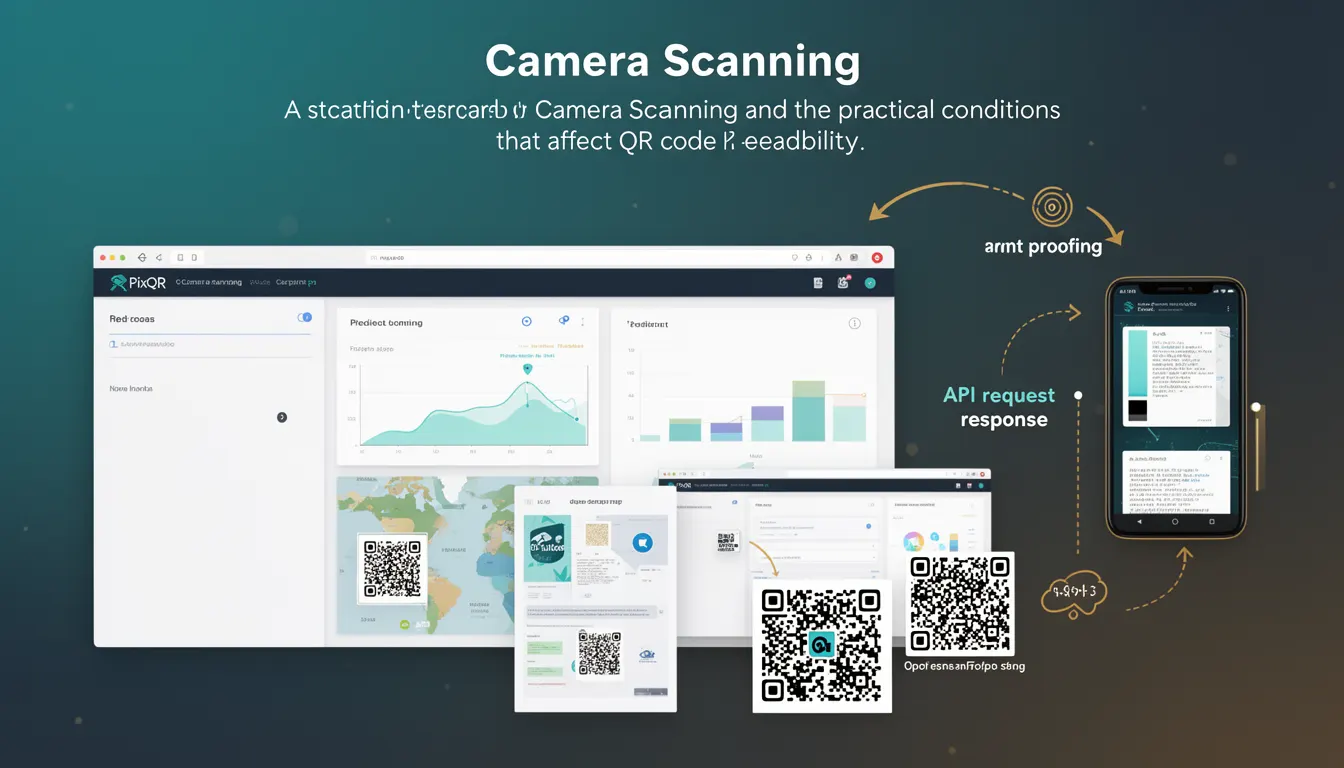
Camera scanning refers to the process of capturing QR codes through a device's camera and decoding them into structured data. In the context of PixQR, camera scanning is a core component of dynamic QR code functionality, enabling users to scan codes directly from mobile or desktop devices and redirect to specified destinations.
For developers working with PixQR, camera scanning represents the client-side interaction between a user’s device camera and the platform’s QR decoding infrastructure. It affects how QR codes are read, processed, and ultimately routed. Understanding camera scanning conditions is essential for ensuring consistent performance across different devices and environments.
Why It Matters
Camera scanning directly impacts user experience, system reliability, and operational efficiency in QR code workflows. Poor camera scanning performance can lead to failed redirects, misdirected traffic, or frustrated users, especially in high-traffic or low-light environments.
From a security standpoint, PixQR ensures that scanned QR codes are validated against known safe patterns, preventing malicious redirects or unauthorized access. For developers, understanding camera scanning conditions helps optimize code for various device capabilities and environmental constraints, reducing support tickets and improving system uptime.
How It Works
Camera scanning in PixQR involves multiple steps: device camera access, image capture, QR code detection, decoding, and redirect execution. The process begins with the browser or application requesting camera permissions, followed by real-time image processing to identify and decode QR codes.
- Camera access is granted through the
getUserMediaAPI, which requires user consent and secure contexts (HTTPS). - QR detection algorithms analyze image frames to locate and isolate QR code patterns.
- Decoding uses standard QR code libraries or PixQR’s proprietary engine to extract data from the code.
- Once decoded, the system validates the payload against PixQR’s safe list or redirect rules.
- Finally, the platform executes the redirect or returns data to the application for further handling.
Quick Reference
| Item | Purpose | Notes |
|---|---|---|
| Camera permission | Access device camera | Must be granted by user |
| Image capture rate | Frame processing frequency | Typically 10–30 FPS |
| QR detection threshold | Minimum code readability | Adjustable for lighting conditions |
| Decoding engine | Interprets QR code data | Uses standard or custom algorithms |
| Redirect validation | Ensures safe destination | Prevents malicious redirection |
Basic Example
PixQR Example QR
This QR links directly to this glossary page, so printed notes, onboarding docs, and support material can bring scanners back to the current reference.

This example demonstrates how to initiate camera scanning using a simplified PixQR integration. It shows the minimal setup required to access the camera and begin scanning.
const scanner = new PixQR.Scanner({
  target: '#camera-container',
  onScan: (data) => {
    console.log('Scanned:', data);
  }
});

scanner.start();
The start() method initializes camera access and begins scanning. The onScan callback receives decoded QR data, which can be used for redirect or logging.
Production Example
This more comprehensive example includes error handling, permission checks, and validation to ensure a robust scanning experience.
const scanner = new PixQR.Scanner({
  target: '#camera-container',
  onScan: (data) => {
    if (data && data.url) {
      window.location.href = data.url;
    } else {
      console.warn('Invalid QR data received');
    }
  },
  onError: (error) => {
    console.error('Scanning error:', error);
  }
});

scanner.start().catch((error) => {
  console.error('Camera access failed:', error);
});
This version ensures that scanned data is validated before redirecting, and that errors are logged for debugging. It also handles camera access failures gracefully, improving the overall user experience.
Common Mistakes
- Not checking camera permissions before attempting to scan, leading to silent failures.
- Ignoring lighting conditions, which can cause detection failures in low-light environments.
- Using unvalidated QR data for redirects, exposing users to malicious links.
- Not handling scanning errors, resulting in broken user flows or unhelpful logs.
- Overlooking device-specific compatibility issues, such as older browsers or unsupported camera APIs.
Security And Production Notes
- Always validate QR code data against known safe domains or patterns to prevent phishing or malicious redirects.
- Ensure that camera access is only requested when necessary, and that users are clearly informed about usage.
- Implement timeouts or retry mechanisms to avoid hanging during scanning, especially in slow or unstable environments.
- Use HTTPS contexts to prevent man-in-the-middle attacks on camera access and data transmission.
- Design scanning workflows to be resilient to device camera limitations, such as low resolution or focus issues.
Related Concepts
Camera scanning is closely tied to several core technologies and practices:
- QR Code Generation: The creation of QR codes that are designed for optimal scanning performance.
- Dynamic Redirects: The system behavior that allows scanned codes to redirect to dynamic or variable URLs.
- Scan Analytics: Tracking and logging of scan events for performance and security monitoring.
- Privacy Controls: Ensuring that scanning does not inadvertently expose user data or device identifiers.
- Device Compatibility: Supporting a wide range of hardware and browser capabilities for consistent scanning.