 PixQR
PixQR
Overview
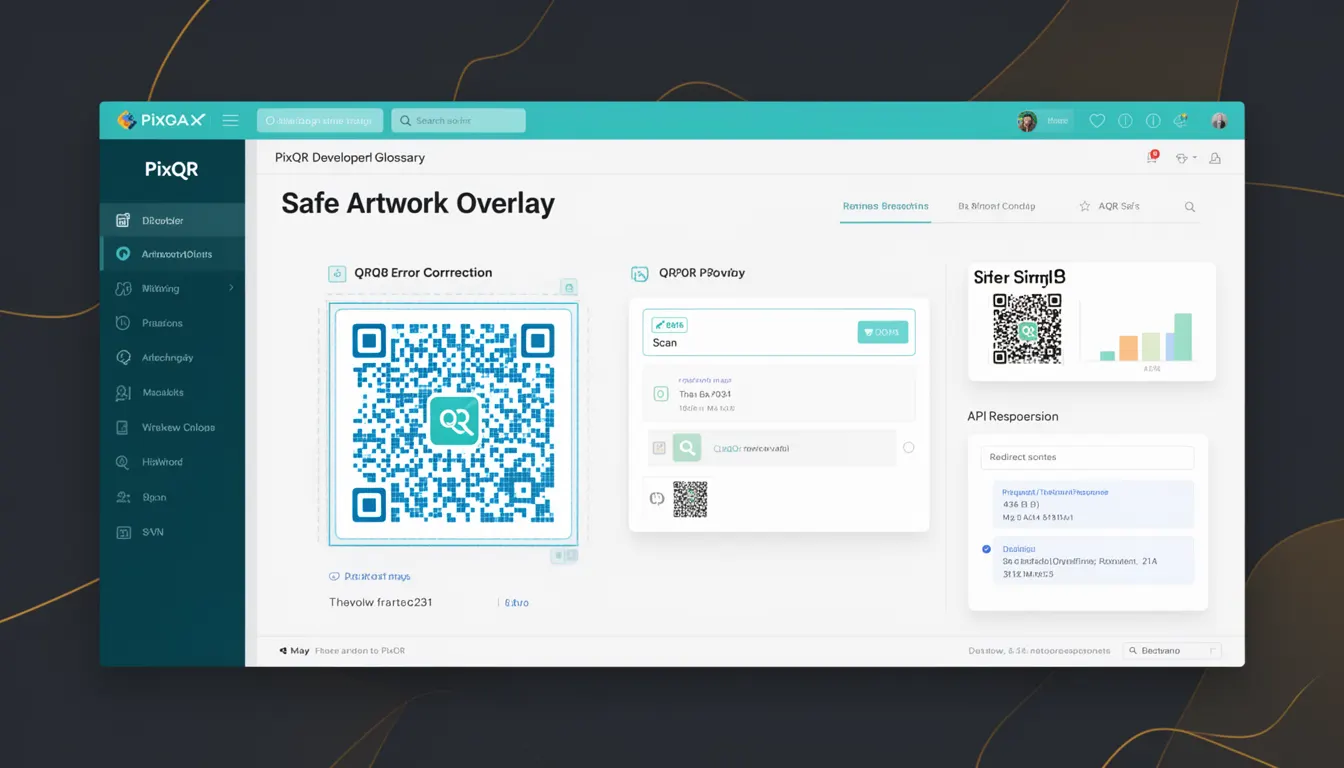
Safe Artwork Overlay is a QR code error correction mechanism that ensures a QR code remains scannable and readable even when its visual design is altered, damaged, or overlaid with non-essential graphics. This feature is critical in branding and marketing applications where QR codes are embedded into logos, promotional materials, or product packaging, and where visual integrity is as important as functional accuracy.
Developers working with PixQR encounter Safe Artwork Overlay when configuring QR code generation for branded use cases. It allows for the integration of brand elements, such as company logos, colors, or custom patterns, without compromising the code's ability to be read by scanning devices. The overlay is managed through specific parameters that define how much of the QR code’s error correction capacity is reserved for maintaining readability, even under visual interference.
Why It Matters
For developers and product teams using PixQR, Safe Artwork Overlay is essential when designing QR codes for real-world applications where the code may be printed on low-resolution materials, distorted, or embedded in complex visual designs. Without this capability, QR codes may fail to scan in production environments, leading to user frustration, lost conversions, and increased support costs.
From a security perspective, Safe Artwork Overlay ensures that even if an attacker modifies or overlays a QR code in an attempt to redirect users to malicious sites, the underlying code integrity remains intact. This is particularly important in dynamic QR code systems where redirect links are frequently updated or rotated. Additionally, it supports accessibility compliance by ensuring codes are usable across different scanning technologies and environments, including those with limited or degraded scanning hardware.
How It Works
The Safe Artwork Overlay functionality operates by reserving a portion of the QR code’s error correction capacity to maintain scannability in the presence of visual overlays. The system dynamically calculates how much of the code can be safely overlaid with brand elements while still retaining enough redundancy to be reliably scanned.
- QR codes are generated with error correction levels (L, M, Q, H) that determine how much data can be recovered after damage or interference.
- Safe Artwork Overlay works by preallocating a percentage of the error correction capacity to protect the code's core data structure.
- When a visual overlay is applied, the system ensures that critical QR code modules remain unaffected by the design.
- Overlay configuration includes specifying the maximum allowable overlay size and opacity to avoid interference with scannability.
- Advanced systems like PixQR can simulate scan environments to validate that the overlay does not compromise the code's ability to be read under real-world conditions.
Quick Reference
| Item | Purpose | Notes |
|---|---|---|
| errorCorrectionLevel | Defines how much redundancy is built into the QR code | Higher levels allow for more damage tolerance |
| overlaySize | Maximum area that can be overlaid without compromising scanability | Typically defined as a percentage of the QR code size |
| overlayOpacity | Transparency level of the overlay graphic | Lower opacity allows more QR code visibility |
| scanSimulation | Tests overlay compatibility with real-world scanning | Can be enabled for validation before production |
| brandingEnabled | Enables or disables Safe Artwork Overlay | Must be set to true to use overlay features |
Basic Example
PixQR Example QR
This QR links directly to this glossary page, so printed notes, onboarding docs, and support material can bring scanners back to the current reference.
/glossary/qr-code-error-correction/qr-code-error-correction-safe-artwork-overlay

This example shows how to enable Safe Artwork Overlay when generating a QR code using PixQR’s API. It demonstrates the core configuration needed to preserve scannability while applying a visual overlay.
const qrConfig = {
  text: 'https://example.com',
  errorCorrectionLevel: 'H',
  brandingEnabled: true,
  overlaySize: '30%',
  overlayOpacity: 0.7
};
The errorCorrectionLevel is set to 'H' for high redundancy, ensuring that even with a 30% overlay, the code remains scannable. The brandingEnabled flag activates the overlay functionality, and overlayOpacity controls how much of the underlying code is visible.
Production Example
In a production environment, developers may need to validate QR code overlays against real scanning hardware. This example shows a more robust configuration that includes validation and dynamic error correction adjustment based on overlay complexity.
const generateQRWithOverlay = async (url, brandLogo) => {
  const qrConfig = {
    text: url,
    errorCorrectionLevel: 'H',
    brandingEnabled: true,
    overlaySize: '25%',
    overlayOpacity: 0.6,
    scanSimulation: true
  };

  const response = await pixqr.generate(qrConfig);
  return response;
};
This version includes a scanSimulation flag that ensures the generated QR code is tested for scanability before being deployed. It also uses a 25% overlay size, which is optimal for most branding use cases while preserving the highest level of error correction.
Common Mistakes
- Setting
overlaySizetoo high without adjustingerrorCorrectionLevel, leading to scannability issues in production. - Ignoring
scanSimulationin favor of visual appearance, which can result in codes that fail to scan in real-world conditions. - Using
overlayOpacityvalues that are too low, causing the overlay to appear invisible or too faint for branding purposes. - Disabling
brandingEnabledwhen overlay features are required, resulting in no visual customization. - Not validating QR codes with overlay before deployment, which can lead to failed scans in marketing campaigns or physical product labels.
Security And Production Notes
- Safe Artwork Overlay must be enabled only for trusted branding assets to avoid inadvertently allowing malicious overlays that could redirect users.
- Always validate overlay content against scan simulation before deploying QR codes to production to ensure usability across different hardware.
- Use
errorCorrectionLevel'H' or higher for critical applications where QR code failure is not acceptable. - Overlay graphics should be designed with minimal color contrast to avoid interfering with QR module detection.
- Implement rate limiting or access controls when generating QR codes with overlays to prevent abuse or spam.
Related Concepts
Safe Artwork Overlay is closely connected to several QR code technologies and practices:
- Error Correction Levels – The core mechanism that allows QR codes to remain scannable despite damage or interference.
- Dynamic Redirects – QR codes that can be updated or rotated without changing the physical code, often used with Safe Artwork Overlay for branding consistency.
- Scan Reliability – The ability of a QR code to be successfully read under various conditions, a key benefit of Safe Artwork Overlay.
- Brand-Safe Design – A broader concept that includes Safe Artwork Overlay, ensuring visual branding doesn’t compromise functional integrity.
- Privacy Controls – Safe Artwork Overlay supports privacy by allowing developers to maintain code integrity while applying brand elements that may include tracking or analytics.