 PixQR
PixQR
Overview
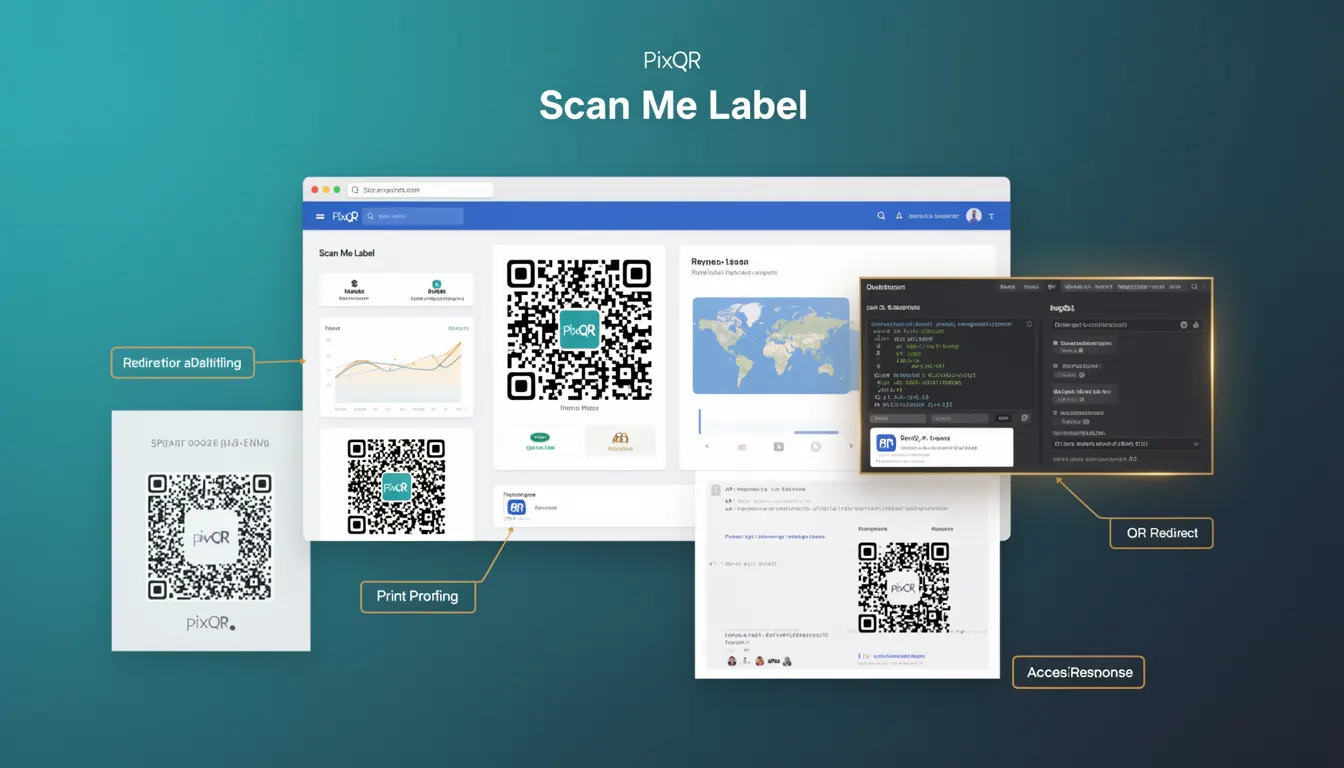
A Scan Me Label is a design element applied to QR codes to improve their visual presentation while maintaining full scan functionality and readability. It typically consists of a text overlay, visual icon, or branding element placed directly on or adjacent to the QR code itself.
In PixQR, Scan Me Labels are used to enhance user experience by providing clear instructions or visual cues that guide users toward scanning the code. These labels are especially important for ensuring that QR codes remain accessible and intuitive across different environments, such as print media, digital displays, or mobile applications.
Why It Matters
For developers working with QR code systems, Scan Me Labels play a crucial role in improving user engagement and reducing confusion. Without clear labeling, users may not understand that a code is meant to be scanned, especially in contexts where QR codes are not the primary interface. This can lead to lower scan rates, user frustration, and reduced effectiveness of marketing or operational campaigns.
From a design and accessibility standpoint, Scan Me Labels help ensure that QR codes are usable across different devices and environments. They also contribute to brand consistency by allowing for the inclusion of logos, text, or visual elements that align with a company’s identity. Properly implemented, Scan Me Labels can improve both the functional and aesthetic aspects of QR code deployments.
How It Works
Scan Me Labels are implemented as overlays or embedded elements within the QR code generation process. They are typically applied using specific parameters or options in QR code libraries or platforms such as PixQR. The implementation must preserve the code's integrity and ensure that scanning remains reliable.
- Scan Me Labels are usually text-based or icon-based elements that are placed directly on the QR code.
- They are often configured using a dedicated parameter or option during QR code generation, such as
label_textorlabel_position. - The label must not obscure critical QR code data points, which could prevent scanning or reduce reliability.
- Label size, font, and color are important attributes that affect both aesthetics and scan performance.
- Some platforms allow for multiple label types, such as static text, animated text, or brand icons, to be applied dynamically.
Quick Reference
| Item | Purpose | Notes |
|---|---|---|
label_text | Defines the text to display on the label | Should be concise and clear |
label_position | Specifies where the label is placed relative to the QR code | Options include top, bottom, left, right, or center |
label_font_size | Sets the size of the label text | Must be small enough to avoid interfering with scan data |
label_color | Defines the color of the label text | Should contrast with the QR code background |
label_icon | Allows for the inclusion of a visual icon or logo | Must be compatible with QR code scanning standards |
Basic Example
PixQR Example QR
This QR links directly to this glossary page, so printed notes, onboarding docs, and support material can bring scanners back to the current reference.
This basic example demonstrates how to apply a Scan Me Label using a PixQR API configuration. The label is placed at the bottom of the QR code and uses a simple text overlay.
{
  "qr_code": {
    "data": "https://example.com",
    "label": {
      "text": "Scan Me",
      "position": "bottom"
    }
  }
}
The text field sets the label content, while position defines where the label appears. This configuration ensures that the label is clearly visible and does not interfere with the code's scanability.
Production Example
In a production environment, Scan Me Labels must be carefully configured to ensure compatibility with scanning systems and accessibility standards. This example includes validation and accessibility considerations.
{
  "qr_code": {
    "data": "https://example.com",
    "label": {
      "text": "Scan Me",
      "position": "bottom",
      "font_size": 12,
      "color": "#000000",
      "margin": 10
    },
    "design": {
      "module_size": 5,
      "quiet_zone": 2
    }
  }
}
This configuration includes additional parameters to ensure the label is properly spaced and sized, preventing interference with the QR code's scan performance. It also ensures that the label meets accessibility requirements for contrast and readability.
Common Mistakes
- Placing the label too close to the QR code’s edges, which can cause scanning issues due to reduced quiet zone.
- Using a font size or color that makes the label unreadable or interferes with the QR code's scanability.
- Adding icons or graphics that are too complex or dense, which can distort the code's pattern.
- Ignoring the impact of label placement on the overall QR code structure, leading to a loss of scanning reliability.
- Not testing the label in various environments, such as print or mobile devices, before deployment.
Security And Production Notes
- Ensure that Scan Me Labels do not contain sensitive data or redirect paths that could be exploited.
- Validate label text to prevent injection or unintended behavior in dynamic QR code systems.
- Use accessible color contrast ratios for text labels to comply with WCAG guidelines.
- Keep label size and positioning within standards to maintain QR code integrity and scan reliability.
- Test labels across different devices and media to ensure consistent performance and appearance.
Related Concepts
Scan Me Labels are closely related to several other QR code design and implementation concepts:
- Quiet Zone: The blank area around the QR code that is required for proper scanning. Labels must not overlap this zone.
- Module Size: The physical size of each QR code module. Label placement must account for this to avoid interference.
- QR Code Standards: Compliance with ISO/IEC 18004 is essential to ensure label design does not compromise code readability.
- Accessibility: Labels must meet WCAG requirements for contrast, size, and clarity.
- Dynamic Redirects: Labels can be used to guide users to dynamic QR code endpoints, ensuring consistent UX.