 PixQR
PixQR
Overview
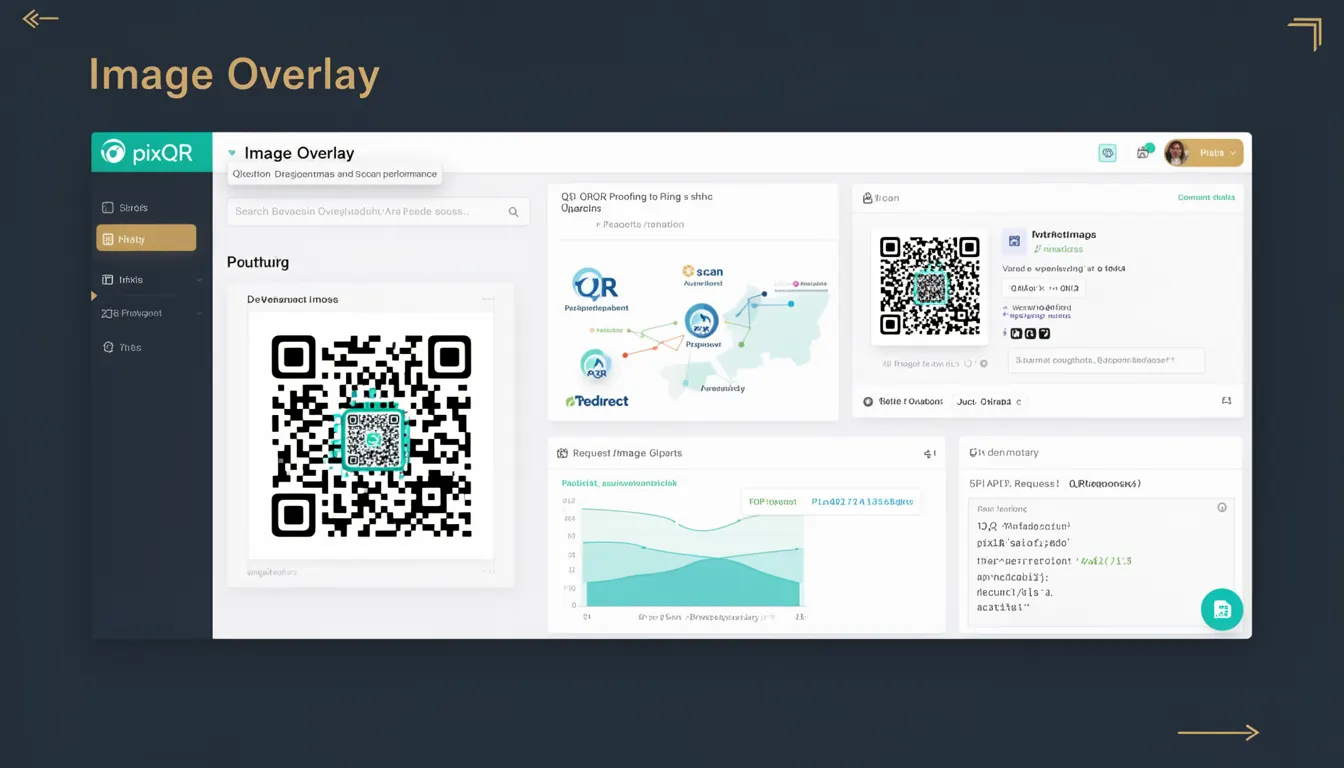
Image Overlay is a design technique used in QR code generation where a visual element, such as a logo, icon, or branding asset, is placed over the base QR code structure. This technique allows for brand recognition and visual enhancement while maintaining the code's scannability and functionality. In the context of PixQR, Image Overlay is implemented as a controlled feature that preserves the integrity of the QR code's data structure, ensuring that scanning remains reliable even when overlays are applied.
Developers and designers using PixQR must understand how overlays are integrated into QR code generation workflows, especially when customizing for marketing, product branding, or internal operational use. The overlay must be carefully positioned and sized to avoid interfering with the code's scanability, which is critical for ensuring a successful user experience.
Why It Matters
Image Overlay plays a crucial role in brand identity and user experience. A well-implemented overlay can make a QR code more visually appealing and recognizable, increasing the likelihood of user engagement. For example, a company logo embedded in a QR code can reinforce brand presence, particularly in marketing campaigns or promotional materials. However, the overlay must not compromise the code’s readability, which is essential for reliable scanning. Poorly implemented overlays can cause scanning failures, leading to user frustration and lost conversions.
From a security and operational standpoint, PixQR enforces strict validation to ensure that overlays do not introduce vulnerabilities or interfere with scan tracking or analytics. This is especially important in enterprise or high-volume applications where QR code integrity and performance are non-negotiable.
How It Works
Image Overlay in QR code generation involves placing an image on top of the base QR code grid while preserving the underlying data structure. The process typically involves:
- Generating a base QR code with a specified data payload and error correction level.
- Overlaying a visual asset, such as a logo or icon, using a defined positioning and sizing strategy.
- Applying image processing to ensure the overlay does not obscure critical QR code modules.
- Validating that the resulting QR code remains scannable across different devices and lighting conditions.
- Supporting dynamic overlay updates via API or configuration without re-generating the entire code.
The PixQR platform supports overlays through a configuration interface where developers can specify image source, dimensions, alignment, and transparency settings. The system ensures that overlay assets are processed to maintain compatibility with various QR code readers and scanning environments. The overlay must be placed in a way that avoids overlapping with the QR code's quiet zone or critical data modules, which are essential for scanning.
Quick Reference
| Item | Purpose | Notes |
|---|---|---|
| overlay_image | Specifies the image asset to be overlaid | Must be a valid image URL or base64-encoded string |
| overlay_position | Defines the alignment of the overlay | Options: center, top-left, bottom-right, etc. |
| overlay_size | Sets the width and height of the overlay | Must be proportional to the QR code size to avoid distortion |
| overlay_opacity | Controls the transparency of the overlay | Value between 0 (fully transparent) and 1 (fully opaque) |
| overlay_padding | Ensures space between overlay and QR code edge | Prevents overlap with critical QR modules |
Basic Example
PixQR Example QR
This QR links directly to this glossary page, so printed notes, onboarding docs, and support material can bring scanners back to the current reference.

This example shows how to define a basic overlay in a PixQR configuration, demonstrating the structure required to apply an image to a QR code.
{
  "data": "https://example.com",
  "overlay_image": "https://example.com/logo.png",
  "overlay_position": "center",
  "overlay_size": {
    "width": 40,
    "height": 40
  }
}
This configuration sets the QR code to link to a website and places a logo in the center of the code. The overlay is sized to fit within the QR code's structure without compromising readability.
Production Example
In a production environment, developers must validate overlay assets and ensure compatibility with various scanning devices. The following example demonstrates a more robust configuration that includes error handling and dynamic asset loading.
{
  "data": "https://example.com",
  "overlay_image": "https://cdn.example.com/brand/logo.png",
  "overlay_position": "center",
  "overlay_size": {
    "width": 50,
    "height": 50
  },
  "overlay_opacity": 0.8,
  "overlay_padding": 5,
  "error_correction": "M"
}
This configuration sets a higher error correction level to enhance scan reliability with the overlay, and includes padding to prevent overlap with the QR code's data modules. It also uses a CDN-hosted image to ensure fast loading and consistent availability.
Common Mistakes
- Using an overlay that is too large, which can obscure QR code modules and prevent scanning.
- Placing an overlay in the quiet zone or critical data areas of the QR code.
- Not validating image assets for transparency or file format compatibility.
- Ignoring error correction levels when adding overlays, leading to reduced scan performance.
- Using low-quality or pixelated images that become blurry or unreadable when scaled.
Security And Production Notes
- Always validate overlay image URLs to prevent loading external assets from untrusted sources.
- Ensure overlay assets are hosted on secure, reliable CDNs to avoid loading delays or failures.
- Apply size and transparency controls to prevent overlays from interfering with scan reliability.
- Use error correction levels that account for overlay presence to maintain scanning performance.
- Implement fallbacks for overlay loading to ensure QR codes remain functional even if an overlay fails.
Related Concepts
Image Overlay is closely related to several QR code design and operational concepts:
- QR Code Structure: The underlying grid and module arrangement that must remain intact for scanning.
- Quiet Zone: The unmarked area around the QR code that must remain clear for scanning.
- Error Correction Levels: Settings that define how much data can be restored if parts of the code are damaged or obscured.
- Scan Reliability: The ability of a QR code to be read consistently across devices and conditions.
- Branding and UX: How visual elements are used to enhance user experience without compromising functionality.