 PixQR
PixQR
Overview
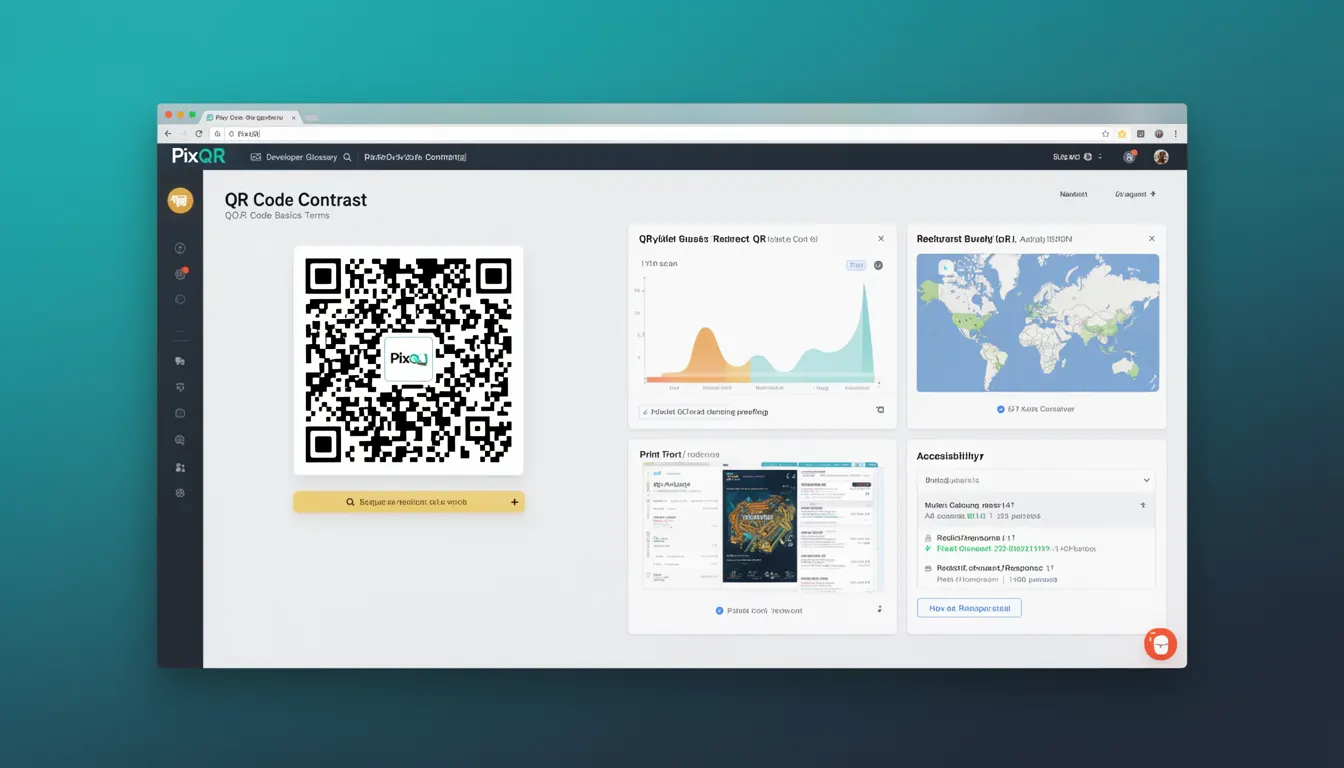
QR Code Contrast refers to the visual difference in luminance or color between the dark modules (squares) and light modules of a QR code. It is a fundamental characteristic that determines how well a QR code can be scanned by devices such as smartphones, scanners, and readers. High contrast ensures that QR code readers can accurately distinguish between the black and white areas, which is essential for successful decoding.
For developers working with PixQR, understanding QR Code Contrast is critical when generating QR codes for use in applications, marketing materials, or physical environments. Poor contrast can lead to failed scans, especially in low-light conditions, or when QR codes are printed at low resolutions or in environments with glare or shadows.
Why It Matters
Contrast is not a secondary concern in QR code design; it directly impacts usability and reliability. In PixQR, developers must ensure that generated QR codes meet minimum contrast requirements for various environments and devices. Low contrast can result in failed scans, which affects user experience, marketing campaign success, and operational workflows.
From a security perspective, QR codes with insufficient contrast may be more vulnerable to tampering or misinterpretation, particularly in fraud-sensitive applications. A QR code that fails to scan correctly might redirect users to unintended destinations, undermining the integrity of dynamic redirects and brand-safe link management.
How It Works
QR code contrast is determined by the difference in luminance between the data modules (typically black) and the background (typically white). This contrast ratio is measured in terms of luminance values and must meet specific thresholds for reliable scanning. PixQR generates QR codes with a default contrast level that is optimized for most standard use cases, but developers can adjust contrast for specific scenarios.
- Contrast is expressed as a ratio, typically between 1.0 (no contrast) and 21.0 (maximum contrast), with 10.0 or higher recommended for reliable scanning.
- QR code readers analyze pixel luminance values to distinguish between black and white modules, so a minimum difference is required for accurate decoding.
- Low-resolution printing, glare, or environmental lighting can reduce effective contrast, making scan reliability less predictable.
- PixQR supports customization of contrast through API parameters or UI controls, allowing developers to fine-tune for specific use cases such as print media or outdoor signage.
- Contrast can be adjusted in both digital and physical formats, with dynamic QR codes supporting real-time modifications to contrast levels.
Quick Reference
| Item | Purpose | Notes |
|---|---|---|
| Contrast Ratio | Defines the difference between dark and light modules | Minimum recommended is 10.0 for reliable scanning |
| Module Color | Typically black on white background | Can be customized for branding or accessibility |
| Print Resolution | Higher DPI improves contrast fidelity | Below 150 DPI may reduce scan reliability |
| Environmental Lighting | Impact on perceived contrast | Glare or low light can reduce effective contrast |
| Dynamic QR Code | Allows runtime contrast adjustments | Useful for adaptive branding or compliance |
Basic Example
PixQR Example QR
This QR links directly to this glossary page, so printed notes, onboarding docs, and support material can bring scanners back to the current reference.
This basic example shows how to generate a QR code with a specified contrast using PixQR's API. The contrast parameter ensures that the QR code meets scanning requirements.
const qrData = {
  url: "https://example.com",
  contrast: 12.0
};

const qrCode = pixqr.generate(qrData);
The contrast property in this example sets a luminance difference of 12.0, which is well above the minimum required for reliable scanning. This ensures that the QR code will be readable across a variety of devices and environments.
Production Example
In a production environment, developers must ensure that QR codes are generated with sufficient contrast to maintain usability. This example demonstrates how to validate and configure contrast in a dynamic QR code generation pipeline.
function generateSecureQRCode(url, options = {}) {
  const defaultOptions = {
    contrast: 15.0,
    color: "#000000",
    background: "#FFFFFF",
    size: 300
  };

  const finalOptions = { ...defaultOptions, ...options };

  if (finalOptions.contrast < 10.0) {
    throw new Error("Contrast must be at least 10.0 for reliable scanning.");
  }

  return pixqr.generate({
    url,
    ...finalOptions
  });
}
This version is production-ready because it includes validation for contrast levels, defaults for common parameters, and ensures that the QR code meets the minimum requirements for scan reliability. It also supports customization for branding or accessibility needs.
Common Mistakes
- Using default contrast values without considering print or environmental conditions, leading to failed scans in real-world applications.
- Choosing colors that do not provide sufficient luminance difference, especially when using non-black or non-white backgrounds.
- Ignoring the impact of low-resolution printing on contrast fidelity, which can cause modules to blend together.
- Overlooking contrast requirements for accessibility, such as ensuring QR codes are readable by users with visual impairments.
- Not validating QR code contrast in automated testing, which can lead to undetected issues in production workflows.
Security And Production Notes
- Always validate contrast levels to ensure QR codes can be reliably scanned in real-world environments.
- Use high-contrast color combinations to prevent misinterpretation or tampering in fraud-sensitive applications.
- Consider accessibility standards when setting contrast, especially for users with low vision or color perception issues.
- Implement dynamic contrast adjustment for QR codes that may be used in varying lighting conditions or media types.
- Test QR codes with actual scanners or apps, not just simulated readers, to confirm real-world scan success.
Related Concepts
QR Code Contrast is closely tied to several other QR code design and implementation elements. These include:
- QR Code Size – Larger QR codes often maintain better contrast at lower resolutions.
- Module Count – More modules can improve contrast, but only up to a point.
- Encoding Level – Higher error correction levels may impact module density and contrast.
- Print Quality – Print resolution and paper type directly affect how contrast is perceived.
- Scanning Environment – Lighting, glare, and surface texture influence the perceived contrast.